Stops report
The stops report lists every stop your vehicles made: where, when the vehicle arrived and left, and how long it stood there. It also tells you whether each stop was inside one of your geo-zones.
Use it to find long stops, stops outside your customers and depots, or where a vehicle spent the night.
What is in the report
One row is one stop: the time between switching the ignition off and switching it on again.
A stop belongs to the period the vehicle arrived in. A stop that started before the period is left out. A stop that started inside the period is shown in full, even when it lasted past the period.
Each stop has a status:
Completed– the vehicle has left.Ongoing– the vehicle is still there when the report is made.Offline– the vehicle has not left, and its tracker has sent no data for 24 hours.
The duration of an ongoing or offline stop runs until the report was made.
Each stop is marked inside or outside the geo-zones you chose in the Data step, so you can tell stops at your customers and depots from stops anywhere else. Geo-zones that are switched off are skipped.
The stops report needs geo-zones in your plan and permission to see geo-zones.
Settings
In the Data step, choose the vehicles and the geo-zones. All geo-zones are included at first. The geo-zones decide which stops are inside, the geo-zone columns and the Geo-zone rows of summary tables. The other settings are on the Filters step.
Stop settings
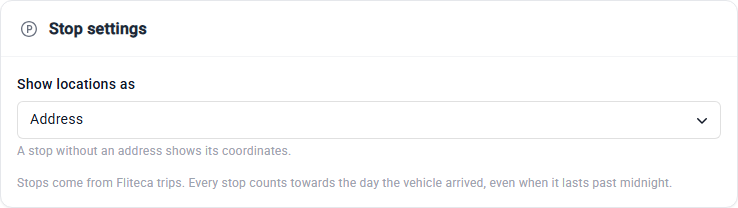
Show locations as – how the Location, Previous location and Next location columns are written: Address (the coordinates when there is no address), Coordinates or Address and coordinates.
Stop filters
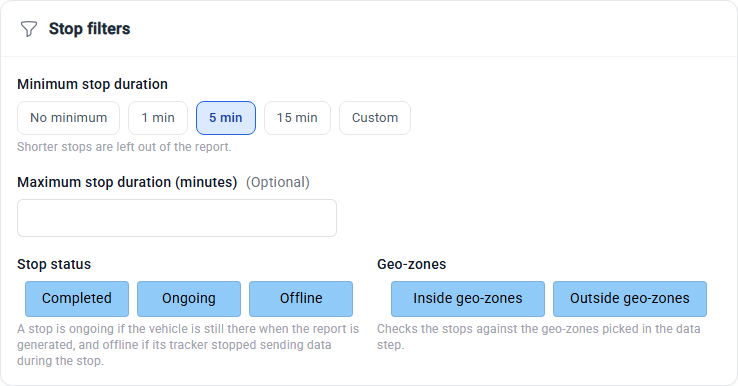
Minimum stop duration – leave out stops shorter than 1 min, 5 min, 15 min or a Custom number of minutes. It starts at 5 min, so quick stops, such as a short drop-off, are left out. Choose No minimum to keep every stop.
Maximum stop duration (minutes) – leave out stops longer than this. Empty at first.
Stop status – keep Completed, Ongoing and Offline stops. All three are ticked at first.
Geo-zones – keep stops Inside geo-zones, Outside geo-zones or both. Untick Inside geo-zones to see only the stops away from your customers and depots.
A vehicle that is still parked counts with the time it has been parked so far. The notes at the top of the report say how many stops the filters left out.
Stop order
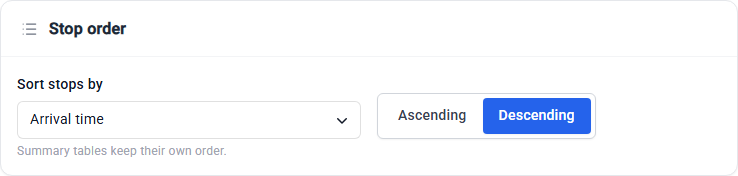
Sort stops by Arrival time, Vehicle name or Duration, Ascending or Descending. The newest stop comes first at the start.
Columns
Columns marked ✓ are in the report by default. The vehicle columns and the geo-zone columns can be added too. The geo-zone columns are empty for a stop outside all geo-zones. A stop inside two geo-zones lists both, separated by a comma.
Column |
What it shows |
Default |
|---|---|---|
Arrival time |
When the vehicle stopped |
✓ |
Departure time |
When the vehicle moved off. Empty while it is still there. |
✓ |
Stop duration |
From the arrival to the departure, or until the report was made |
✓ |
Location |
Where the vehicle stopped, as set in Show locations as |
✓ |
Coordinates |
Latitude and longitude where the vehicle stopped |
|
Departure coordinates |
Latitude and longitude where the vehicle moved off |
|
Previous location |
Where the trip to this stop started: where the vehicle came from |
|
Previous trip distance (km) and Previous trip end time |
The length and the end of the trip to this stop |
|
Next location |
Where the trip from this stop ended: where the vehicle went |
|
Next trip distance (km) and Next trip start time |
The length and the start of the trip from this stop. Empty while the vehicle is still there. |
|
Stop status |
|
|
Stop ID |
A code that identifies the stop. Its |
Summary
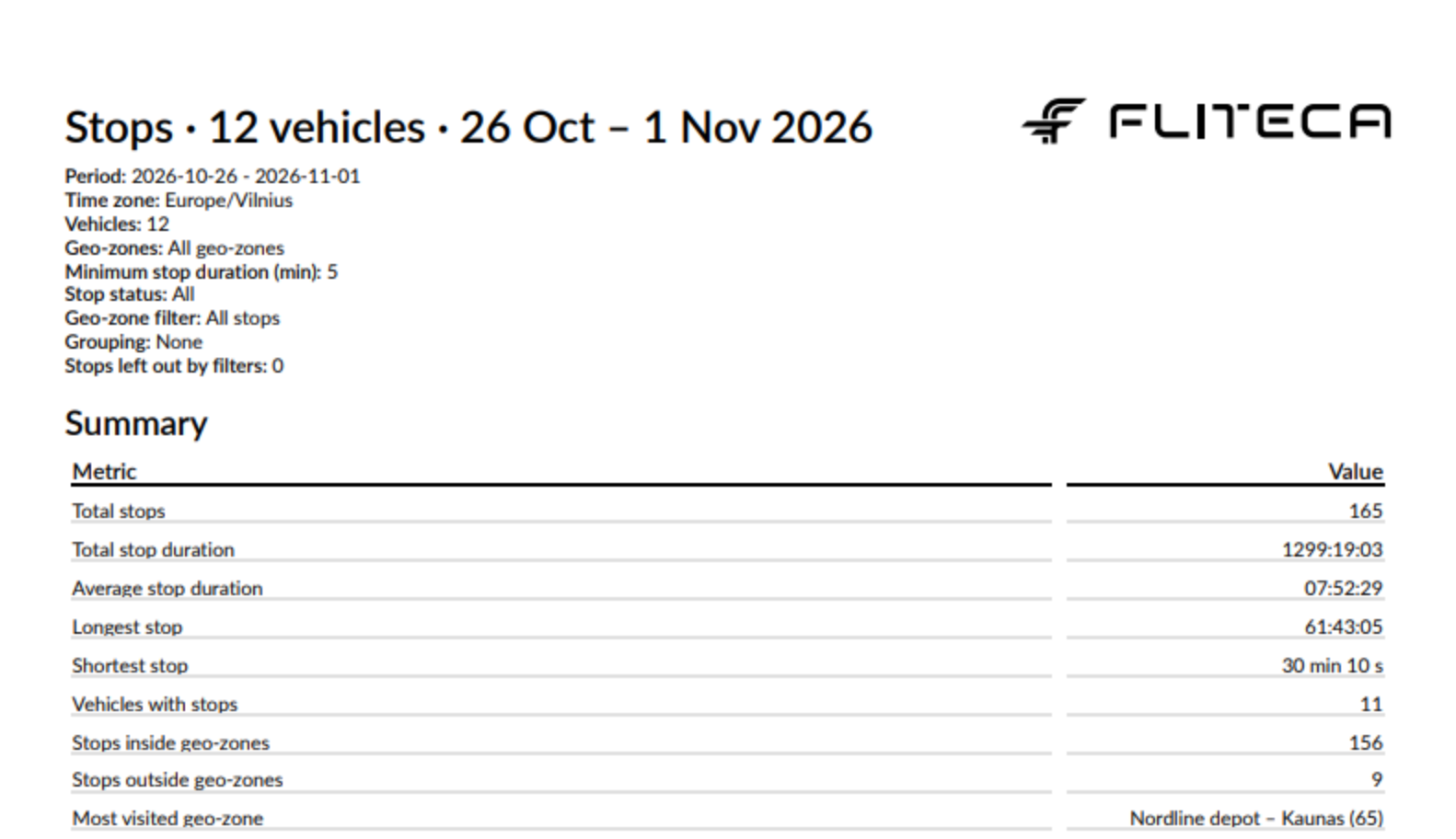
Every stops report starts with these figures:
Figure |
What it is |
|---|---|
Total stops |
The number of stops |
Total stop duration and Average stop duration |
The time stopped. Ongoing and offline stops count until the end of the period. |
Longest stop and Shortest stop |
The longest and the shortest stop |
Vehicles with stops |
How many vehicles have at least one stop |
Stops inside geo-zones and Stops outside geo-zones |
How many stops were inside and outside your geo-zones |
Most visited geo-zone |
The geo-zone with the most stops, with the number of stops in brackets |
Summary tables can have a row for each Vehicle, Vehicle group or Geo-zone, split by the day, week or month the vehicle arrived. They show Stops, Vehicles, Total duration, Average duration, Longest stop, Inside geo-zones and Outside geo-zones. With a row for each geo-zone, the stops outside all geo-zones get a row called Outside geo-zones. See the Summary step.
Example
A stops report for one week, with the default settings. Click a picture to see it full size.

Good to know
An offline stop’s duration runs until the report was made, so a tracker that stopped working days ago shows a very long stop.
A stop inside two overlapping geo-zones is counted in both rows of a summary table, so the table’s total can be higher than Total stops.
The same stops are the
Parkedrows of the trips report. The stops report adds the geo-zones and the trips before and after.