Save and download a report
Every report is saved as a PDF, XLSX or CSV file. You choose the format in the last step, see Output and delivery. Fliteca keeps the file until you delete the report, so you can download it again at any time, and get the same report in another format.
Download a report
On the Generated tab, click the download button of a completed report. If you added email addresses in the last step, the report is also emailed to them with the file attached.
Get it in another format
To get the same report in another format, click Download as… in the three dots of a completed report.
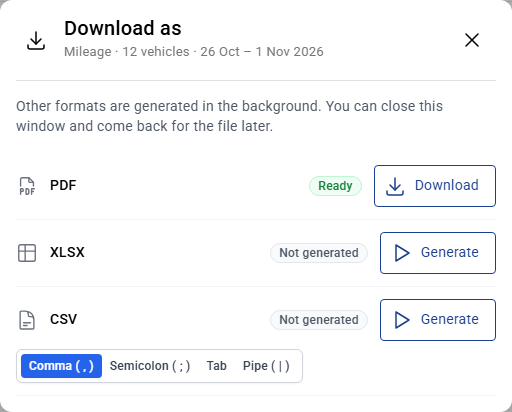
Next to XLSX or CSV, click Generate. For a CSV, choose the separator first.
Fliteca makes the file in the background. You can close the window and come back for it.
When it is ready, click Download.
The new file has exactly the same rows as the first one, even if the data has changed since the report was made.
Storage
Report files count towards your plan’s storage, the same as the other files in Fliteca. Every extra format is a file of its own and counts too. You can see how much storage you use under Plan & usage on the Fleet page.
A report that does not fit into the storage that is left fails. Point at Failed to see why.
While the storage is full, Retry and the Generate buttons in Download as… are switched off.
To free up space, delete the reports you no longer need. Deleting a report deletes all of its files. Or upgrade your plan.
What is in a report file
Every report is built the same way, whatever its type:
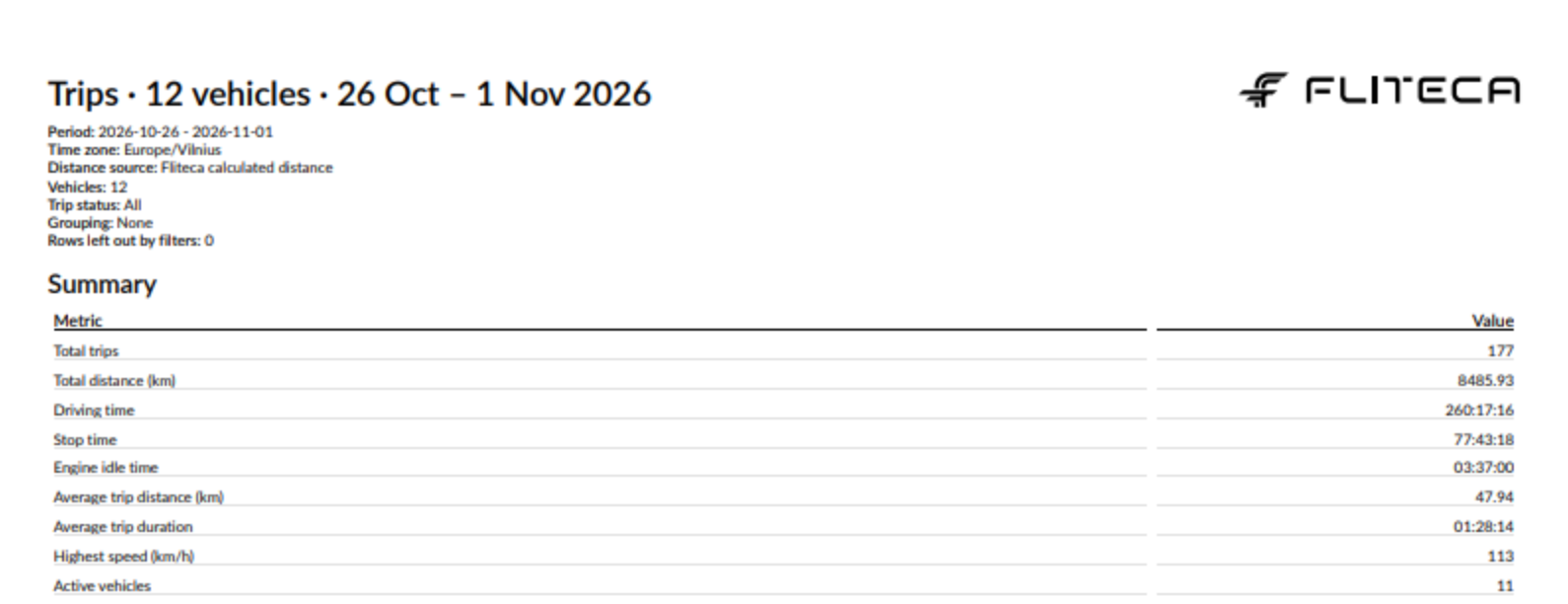
Title and notes – the report name, the period, the time zone and the settings used. The notes also say how many rows the filters left out.
Summary – headline figures such as the total distance. Each report type has its own, see its page.
Grouped by … – the summary tables you added in the Summary step, if any.
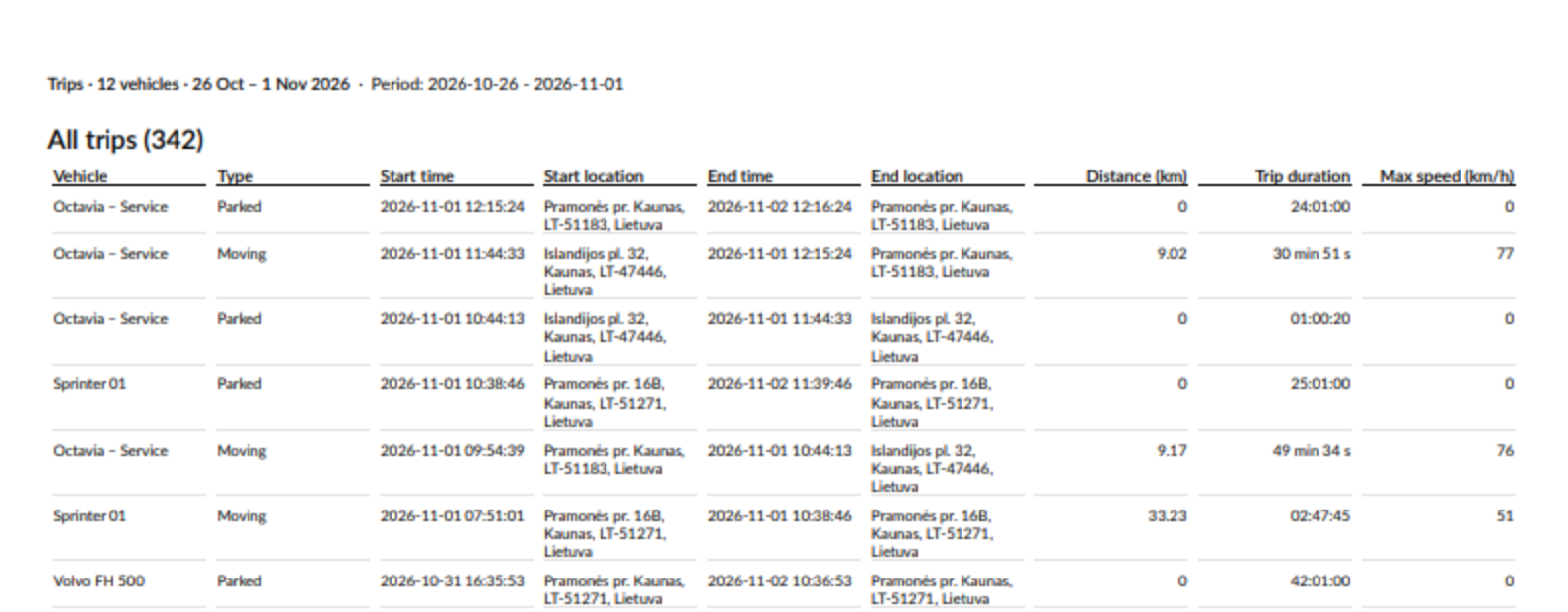
The list – one row for each trip, stop, visit, day or vehicle, with the columns you picked. In a PDF its title shows how many rows it has, for example All trips (342).
Columns that can be added up, such as distance or duration, get a Total row at the bottom of each table.
This is the first page of a trips report:
And the list on the next page:
PDF
A4 pages. When a table has more than 6 columns, the pages are landscape.
The first page has the title, the notes and the Fliteca logo. Every next page starts with the report name and period.
The footer shows when the report was made and the page number.
Durations under an hour are written as
45 s,12 minor3 min 20 s, longer ones as01:28:14.
XLSX
The first sheet, Report, holds the notes. After it there is one sheet for each table: Summary, every Grouped by … table and the list.
The headers are bold and stay in view while you scroll.
Numbers and dates are real Excel numbers and dates, so you can sort them and add them up.
Durations are written as hours, minutes and seconds, for example
51:10:00. Excel treats them as text, so use the report’s Total row instead of adding them up in Excel.
CSV
One file: the notes first, then every table with its title, separated by empty lines.
Choose the separator: Comma, Semicolon, Tab or Pipe. Pick the one your spreadsheet program expects.
Durations are written as
01:28:14.Letters such as ė and ø show correctly when you open the file in Excel.
Values in every format
Times are in the report’s time zone, for example
2026-11-01 08:30:00. A time of exactly midnight shows as the date only.Distances and speeds have up to 2 decimals and use a dot, for example
47.94.An empty cell shows a dash
—. For example, a trip that has not ended yet has no end time.Column names, the notes and the figures in the Summary are always in English.