Single reports
A single report is made once, right away, for a period you pick. For example, last week’s trips for your accountant. On the Generated tab single reports are called One-off.
Make a single report
Click New report.
Choose the report type, and under How often keep Once.
Go through the other steps, see Create a report. In When, pick the period, for example Last 7 days.
Click Generate.
Fliteca makes the report in the background, so you can keep working or leave the page. When it is ready, you get a notification, and everyone in Also send by email gets the file.
Follow its progress
The Generated tab lists every report, the newest first. Click One-off to see only single reports.
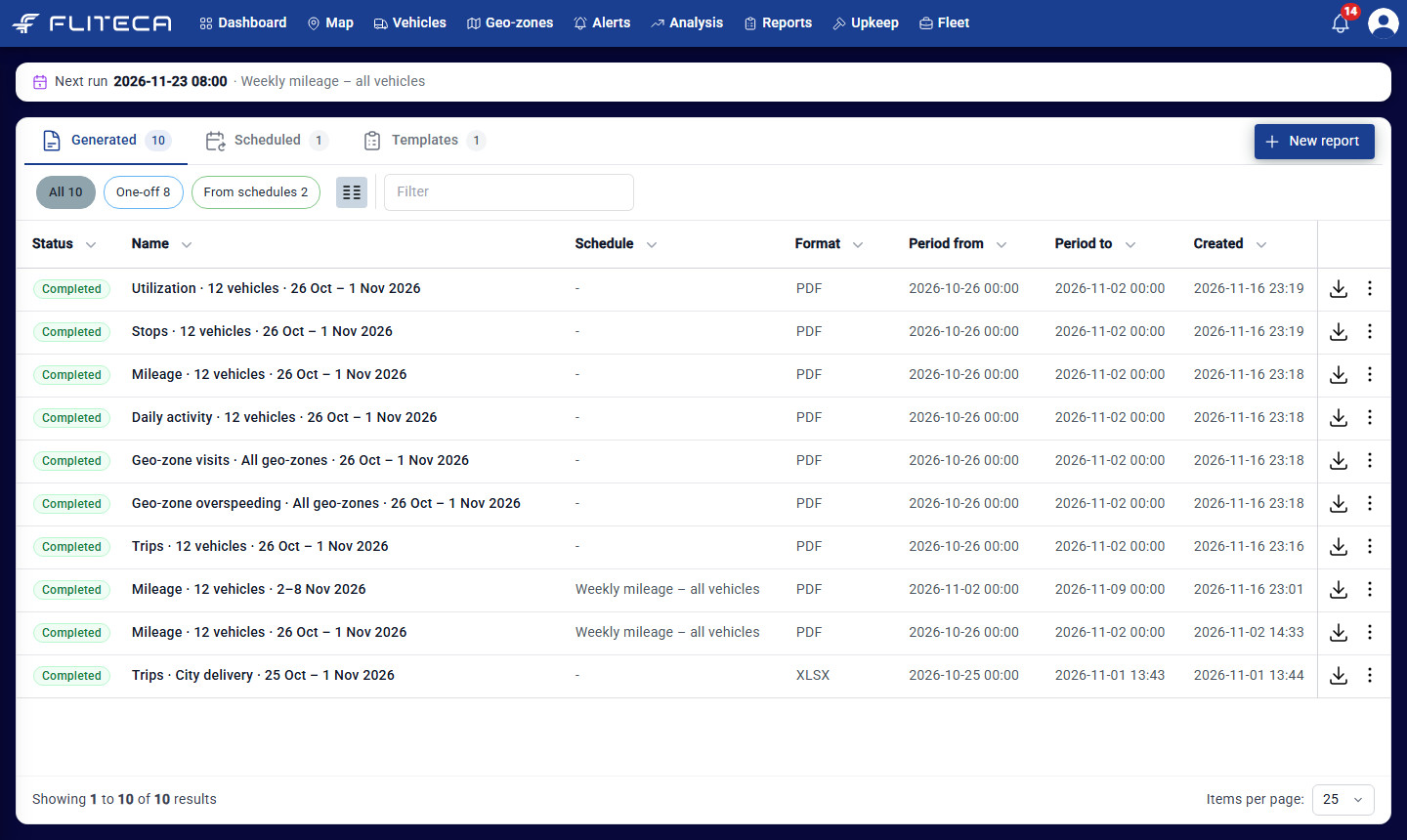
Queued and Generating – the report is being made. The list updates by itself.
Completed – click the download button to get the file, see Save and download a report.
Failed – point at the status to see why. Open the three dots and click Retry to make it again.
Copy, save or delete a report
The three dots of a completed report have more actions:
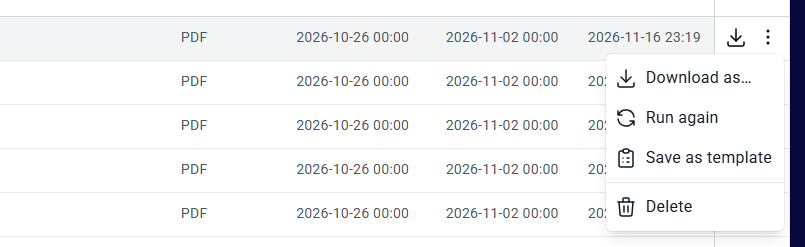
Download as… – get the same report as PDF, XLSX or CSV, see Save and download a report.
Run again – copy the report. A new report opens on its last step, with every setting of this one filled in. Change what you need, for example the period in When, and click Generate.
Save as template – keep the settings to make the same report again later, see Templates.
Delete – delete the report and its files. This frees up your plan’s storage.
Reports stay in the list until you delete them.