SIM cards
Most of the trackers need an active SIM card to send data. Fliteca provides you a full integrated solution to manage your SIM cards, purchased from the Fliteca shop.
Click Fleet in the top menu, then SIM Cards on the left.
Note
Due to European legislation, SIM cards are available only on paid plans. If your plan does not, Fliteca asks you to upgrade before you can activate a SIM card.
Your SIM card list
Tip
Most of the trackers sold by Fliteca come with a Fliteca SIM card. They’re preconfigured and you don’t need to add the SIM card manually. It will automatically show up, once you register the tracker
The list shows each SIM card’s name, ICCID, status, the modem that uses it, its coverage and the IMEI of its tracker. Click the copy icon next to an ICCID or IMEI to copy the number.
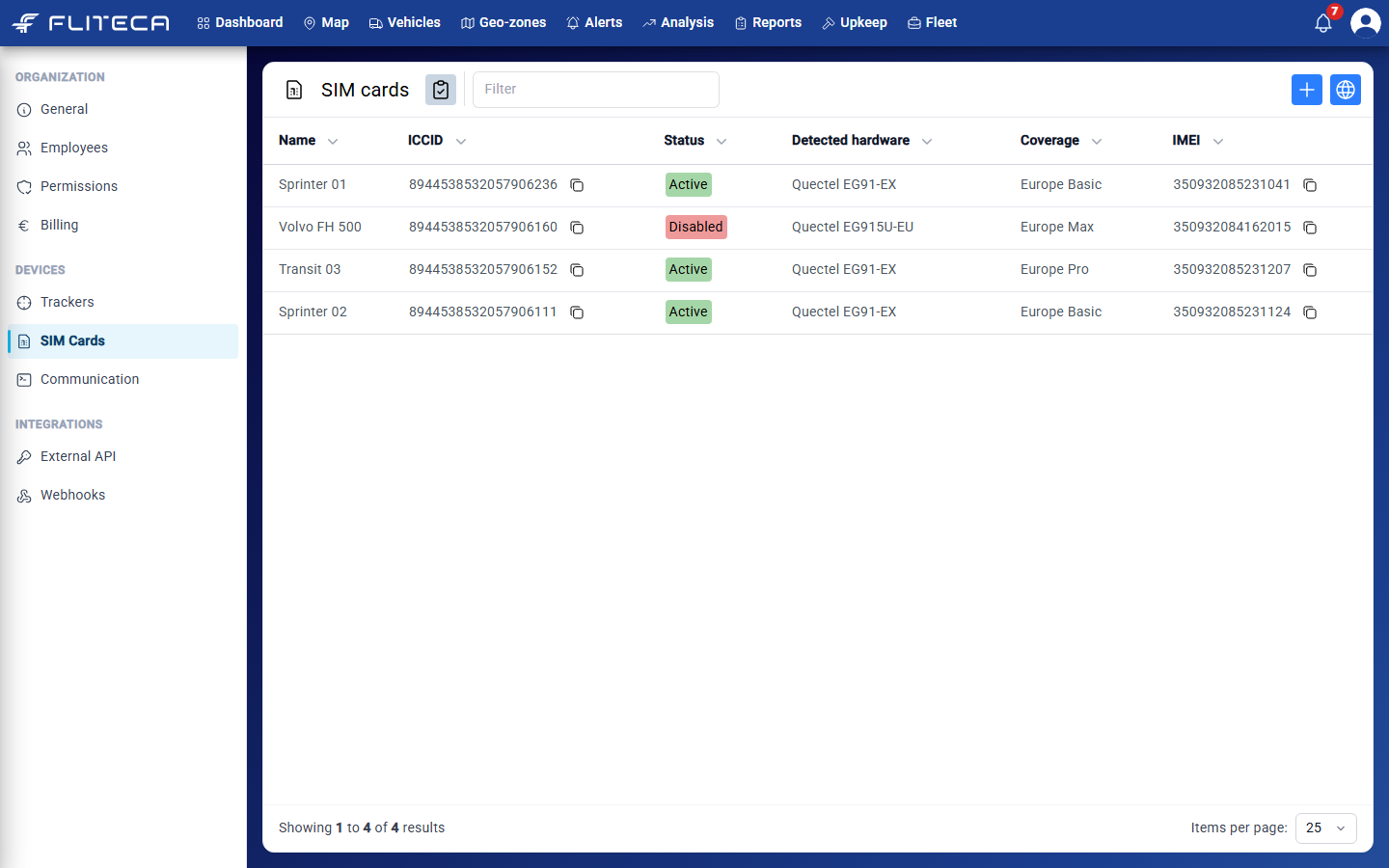
The Status column tells you if a SIM card works:
Active – the SIM card is active and charged to your invoice
Disabled – the SIM card is disabled and does not charge you.
Activating, Disabling or Changing coverage – a change is in progress. It takes a few minutes.
Manually register a SIM card
Click + in the top-right corner.
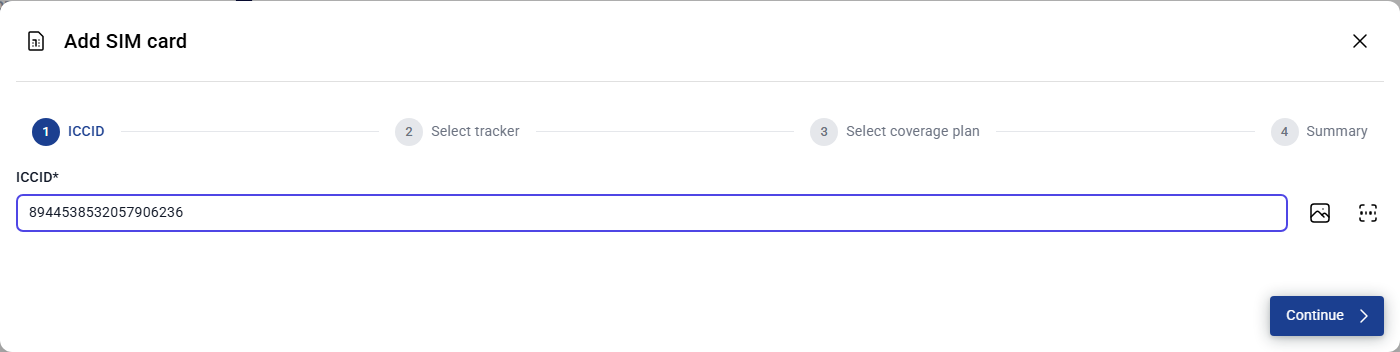
ICCID – type the long number printed on the SIM card. You can also click the picture icon to read it from a photo, or the scanner icon to scan the barcode with your camera. Click Continue.
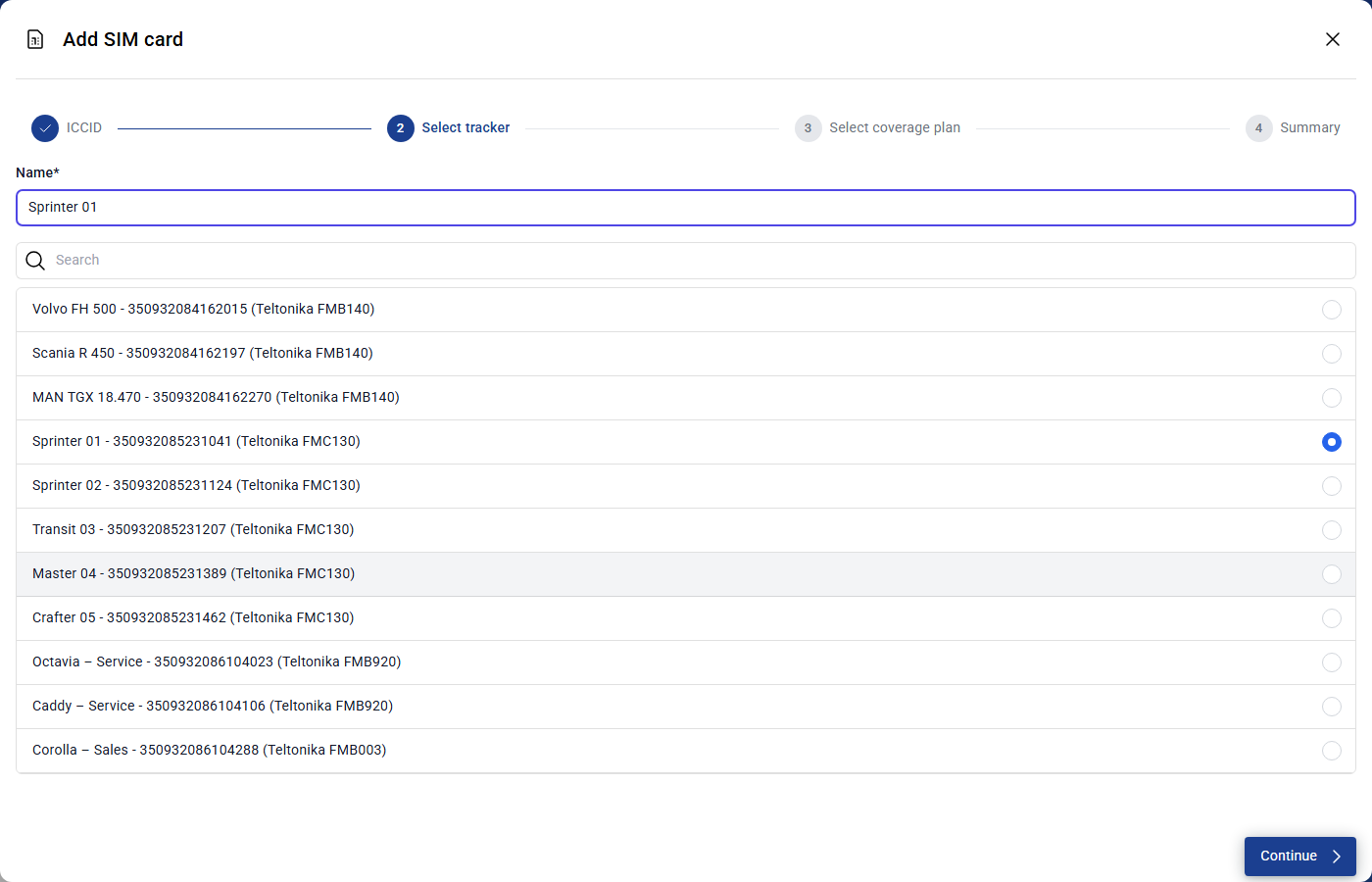
Select tracker – type a name that your team knows, for example “Sprinter 01 SIM”. Then choose the tracker that the SIM card is in. If Fliteca already sees a tracker using this SIM card, that tracker is already chosen. Click Continue.
Select coverage plan – click the plan you want. Each plan shows the monthly price, how much data is included, the price of each extra MB and the countries where it works. Click Continue.
Summary – check the name, the ICCID and the plan. Click Save.
The new SIM card is in the list with the status Disabled. Activate it to start using it.
Activate or disable SIM cards
Click the selection button next to the title. Boxes appear in the list.
Tick the SIM cards. A bar with three buttons appears at the bottom of the list:
Green play button – Activate. The price of each SIM card is added to your next invoice.
Stop button – Disable. The SIM cards stop working and are not on your next invoice.
Globe – Change coverage. See Change coverage.
If a button cannot be used for some of the SIM cards you ticked, a red message under the bar shows which ones. In this example, the Volvo FH 500 SIM card is already disabled, so you can only activate it.
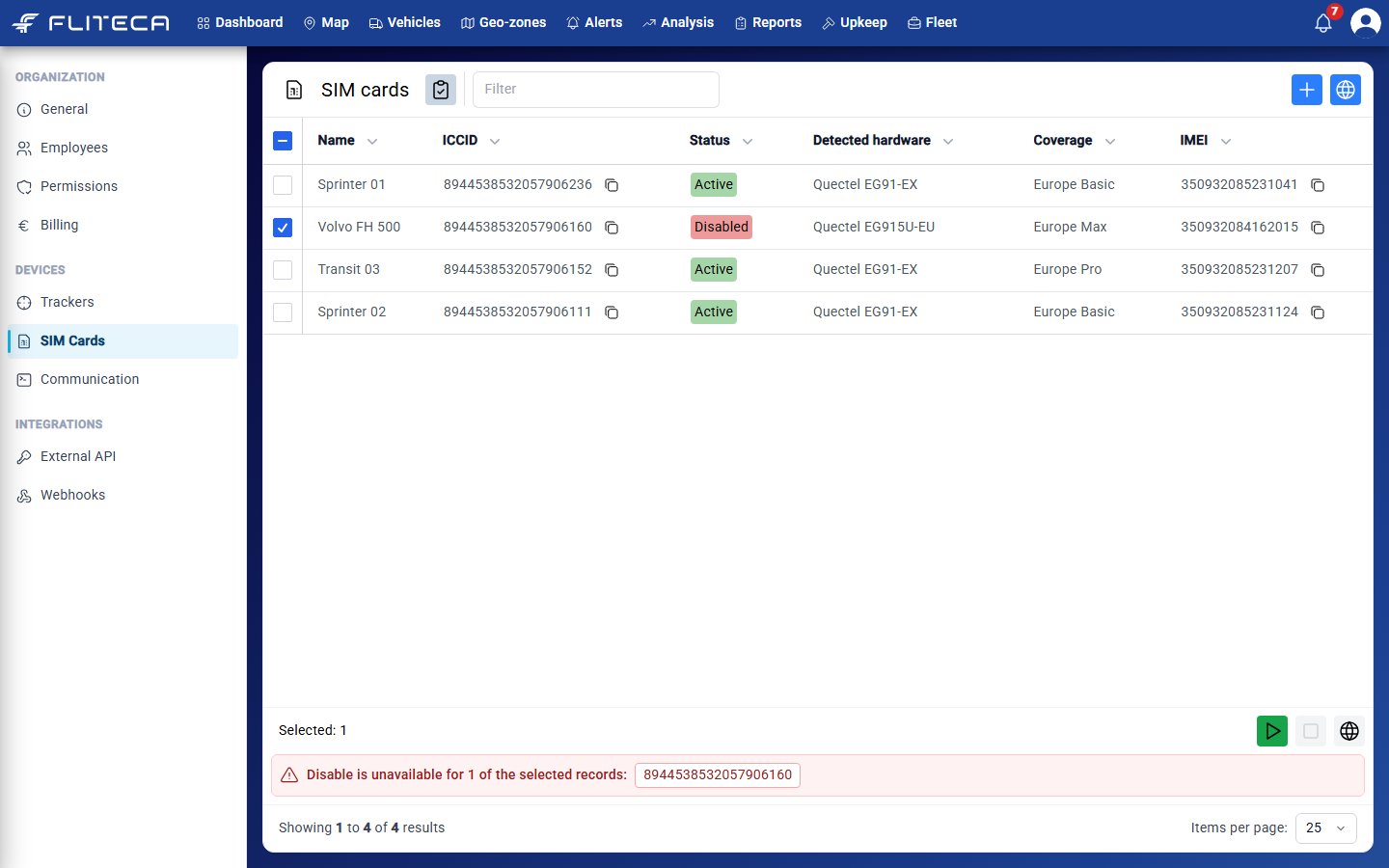
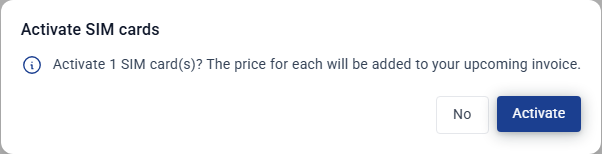
Click the button you need. Fliteca asks you to confirm. Click Activate (or Disable).
Note
Changes take a few minutes. While a change is in progress, you cannot change the same SIM card again.
Change coverage
Change the plan of many SIM cards at once, for example when your trucks start driving in more countries.
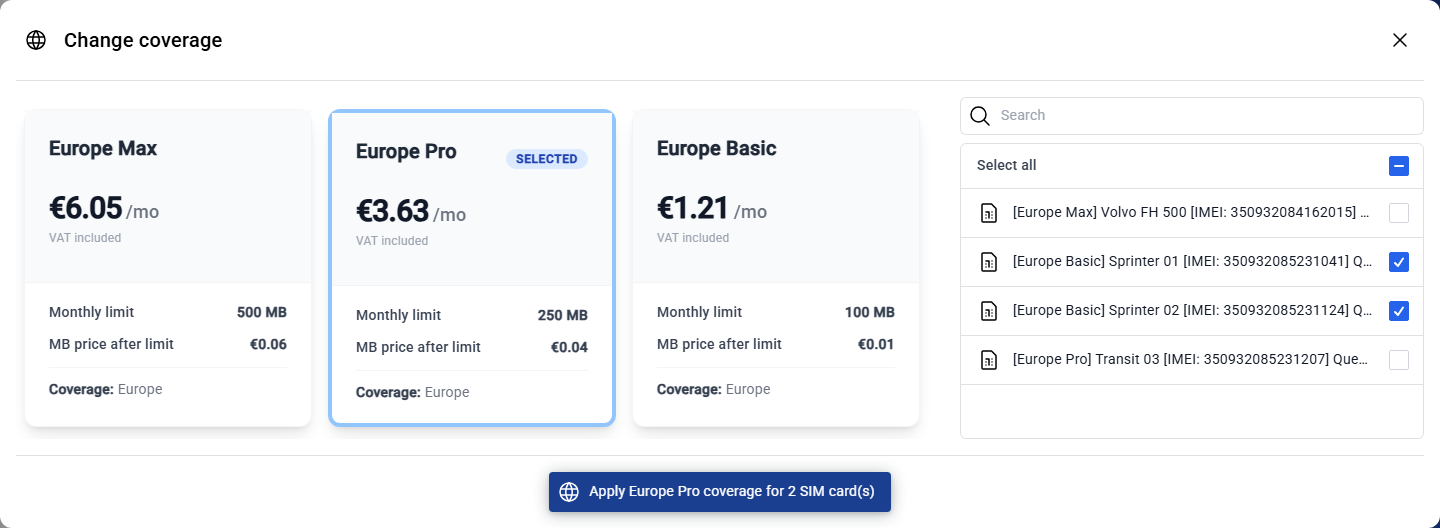
Click the globe in the top-right corner of the SIM card list. You can also tick SIM cards in the list and click the globe in the bar at the bottom.
Click the plan you want. It is marked Selected.
On the right, tick the SIM cards that get the new plan. Each SIM card shows its current plan in brackets. Type in Search to find a SIM card, or tick Select all.
Click the button at the bottom, for example Apply Europe Pro coverage for 2 SIM card(s).
SIM card details
You can click on any SIM card in the list to open its page. You will be able to see:
Coverage & usage – how much data the SIM card used this month, its plan and when the plan renews. Use the switch to activate or disable this SIM card. Click Change plan to choose another plan for this SIM card only.
Details – the ICCID, the country and mobile carrier it last used, and its tracker. Click Change assigned tracker if you move the SIM card to another tracker.
Location – where the SIM card was last seen.
Usage – data use per day. Click Monthly to see data use per month.