Trackers
A tracker is the small GPS device that you install in a vehicle. It sends the vehicle’s position and other data to Fliteca. We reccomend using Teltonika Telematics trackers, though JT808 protocol for other trackers are also supported.
To see your trackers, click Fleet in the navigation bar and then Trackers.
Add a tracker
The tracker registration expeience differs based on where you purchased your tracker from. If you purchased a tracker from Fliteca Shop, please follow the instructions provided in the box, scan the QR code and most of the information will be prefilled automatically.
If you are using your own tracker purchased elsewhere, please follow the further guide. You’ll need to know the tracker’s model IMEI and preferably SerialNumber. Different manufacturers place IMEI and SerialNumber in different places. Please contact the support to get all of the required details
Click New above the tracker list.
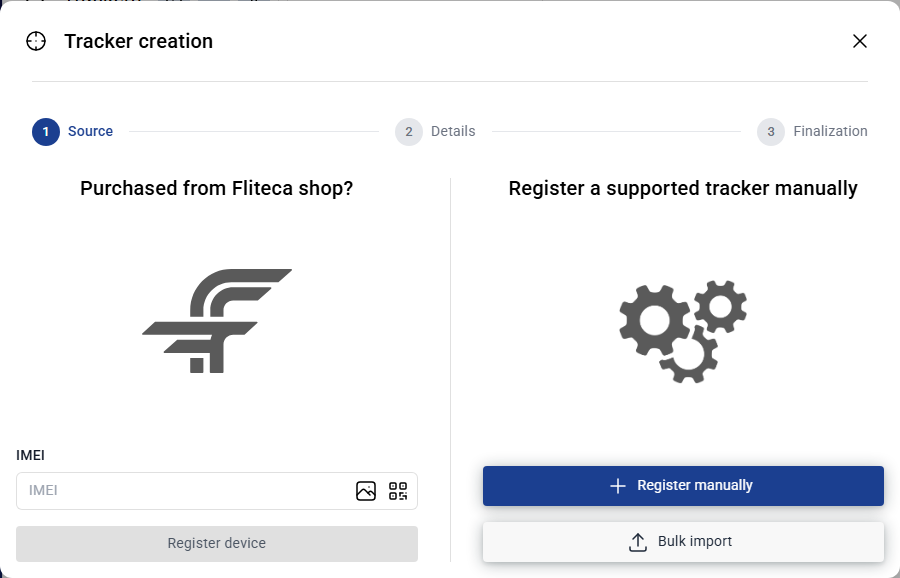
Source – choose how to add the tracker:
Purchased from Fliteca shop? Type the IMEI, or click the photo or QR icon to scan the label. Click Register device.
Register manually – for a tracker you bought somewhere else.
Bulk import – add many trackers from a file. See Bulk tracker import.
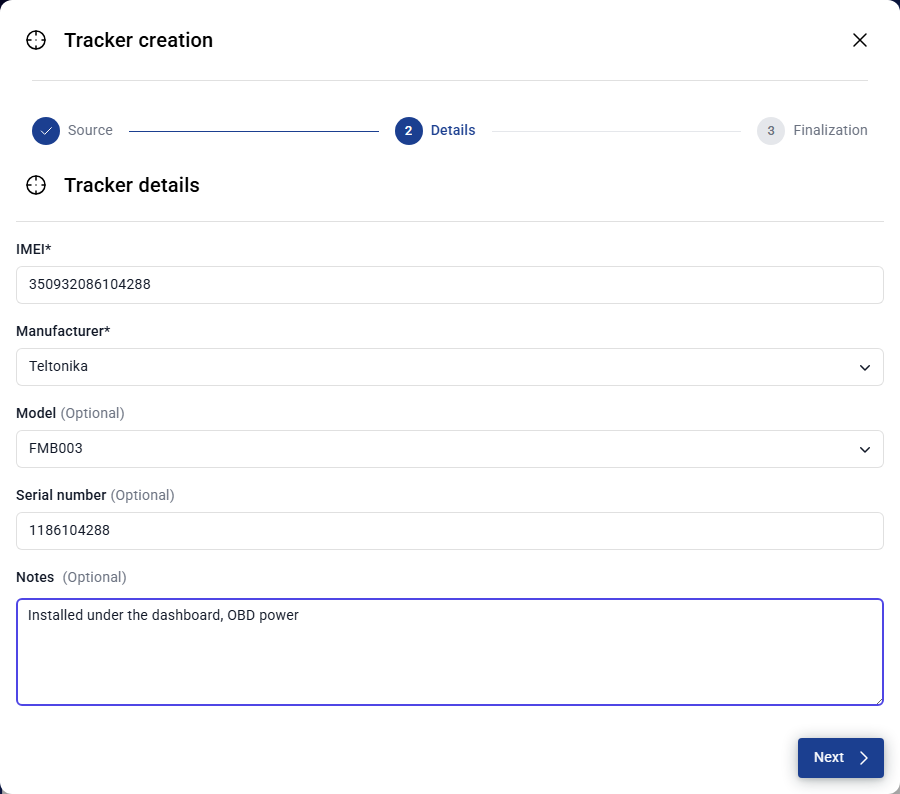
Details – enter the IMEI and choose the manufacturer. The model, serial number and notes are optional. We suggest leaving installation directions in the note field (such as “Installed under the dashboard”), because in the future, it might help your mechanic/support engineer.
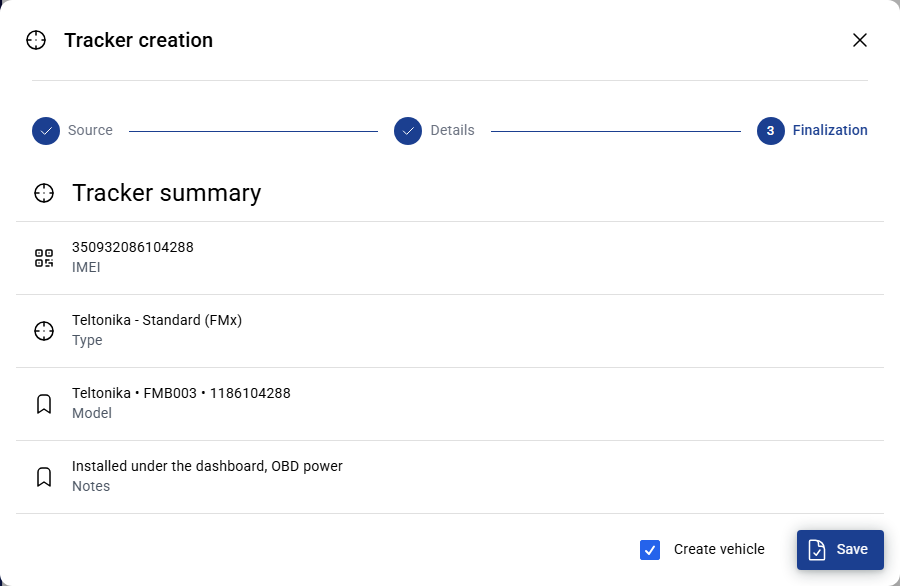
Finalization – check the summary. Keep Create vehicle ticked to add the vehicle for this tracker right away. Click Save.
Add many trackers at once
If you’re migrating your fleet from the other platform and might need to import multiple trackers at once, you can utilize the Bulk import feature. To add many trackers from an Excel file, see Bulk tracker import.
Configure the tracker
Tip
Trackers, purchased from Fliteca shop Will usually come pre-configured.
If registering the tracker manually, or tracker, purchased from Fliteca shop explicitly stated that it is unconfigured, you must configure the device before using it. Most importatn configuration is the server settings, as the tracker must know where to send its data. Follow Tracker configuration once for each new tracker.
The banner at the top of the tracker list reminds you of this.
Your tracker list
The list shows each tracker’s model, serial number, IMEI, type and when it last sent data. You can go to the concrete tracker view, by clicking on any of the designated rows.
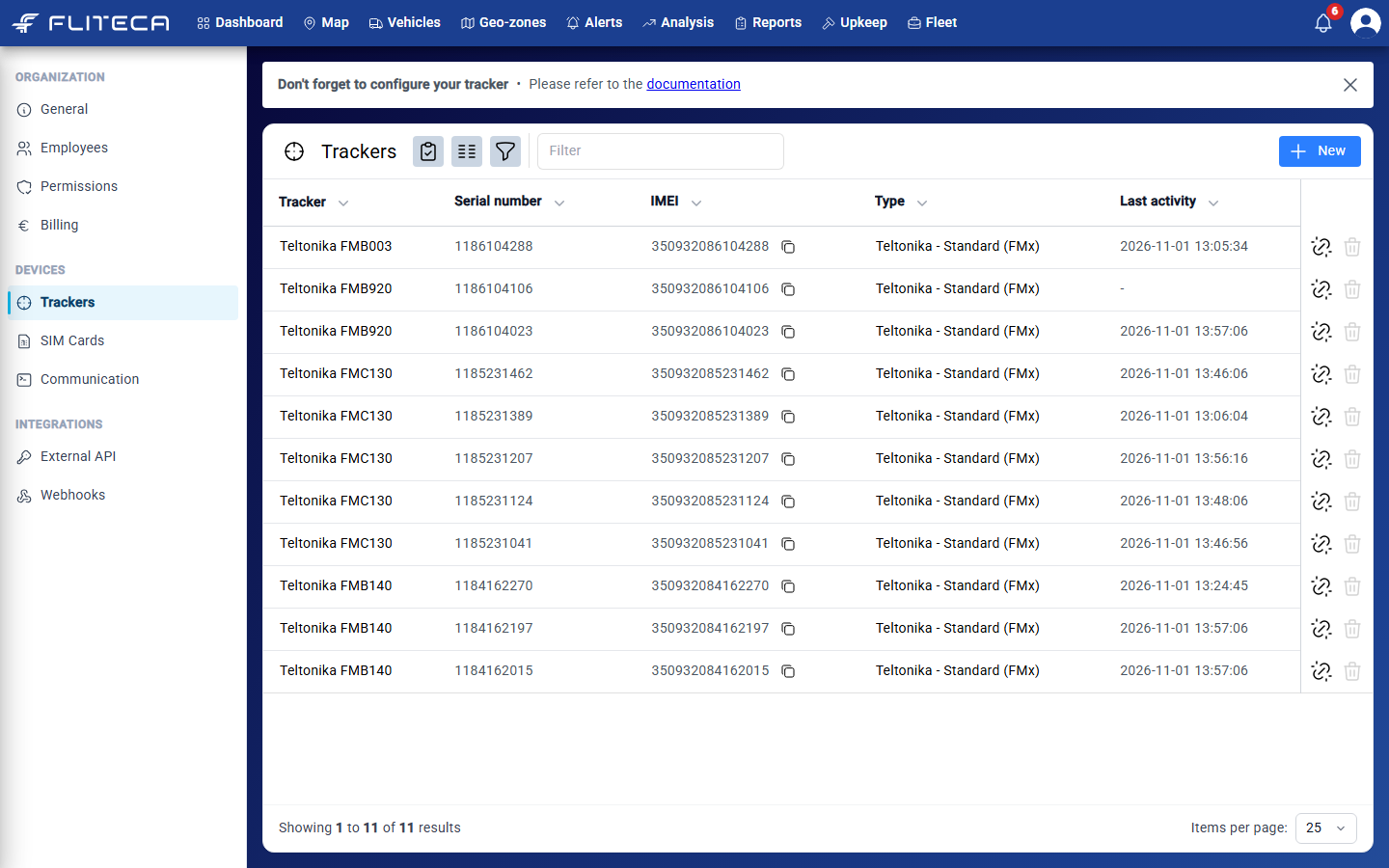
The buttons at the end of each row:
Unlink – take the tracker out of its vehicle, for example before you move it to another vehicle.
Delete – remove the tracker. You can only delete a tracker that is not in a vehicle.
For bulk tools, such as bulk delete, or to send GPRS command to multiple trackers, click the selection button next to the title and tick the desired trackers. After that, a bulk-action toolbar will be shown below with all of the available options. See Tracker commands.
Tip
Need a tracker? Visit the Fliteca shop.