Permissions
A permission decides what an employee can see and change, and which vehicles they can see. For example, a driver only sees the long-haul trucks and cannot change anything. An accountant only sees the billing and invoice documents, different company groups see only their team vehicles.
The person who created the company is the Manager. The Manager can do everything. Every other employee gets a permission that you make.
Click Fleet in the top menu, then Permissions on the left.
Permission list
The list shows each permission with what it allows, which vehicles it covers and who has it.
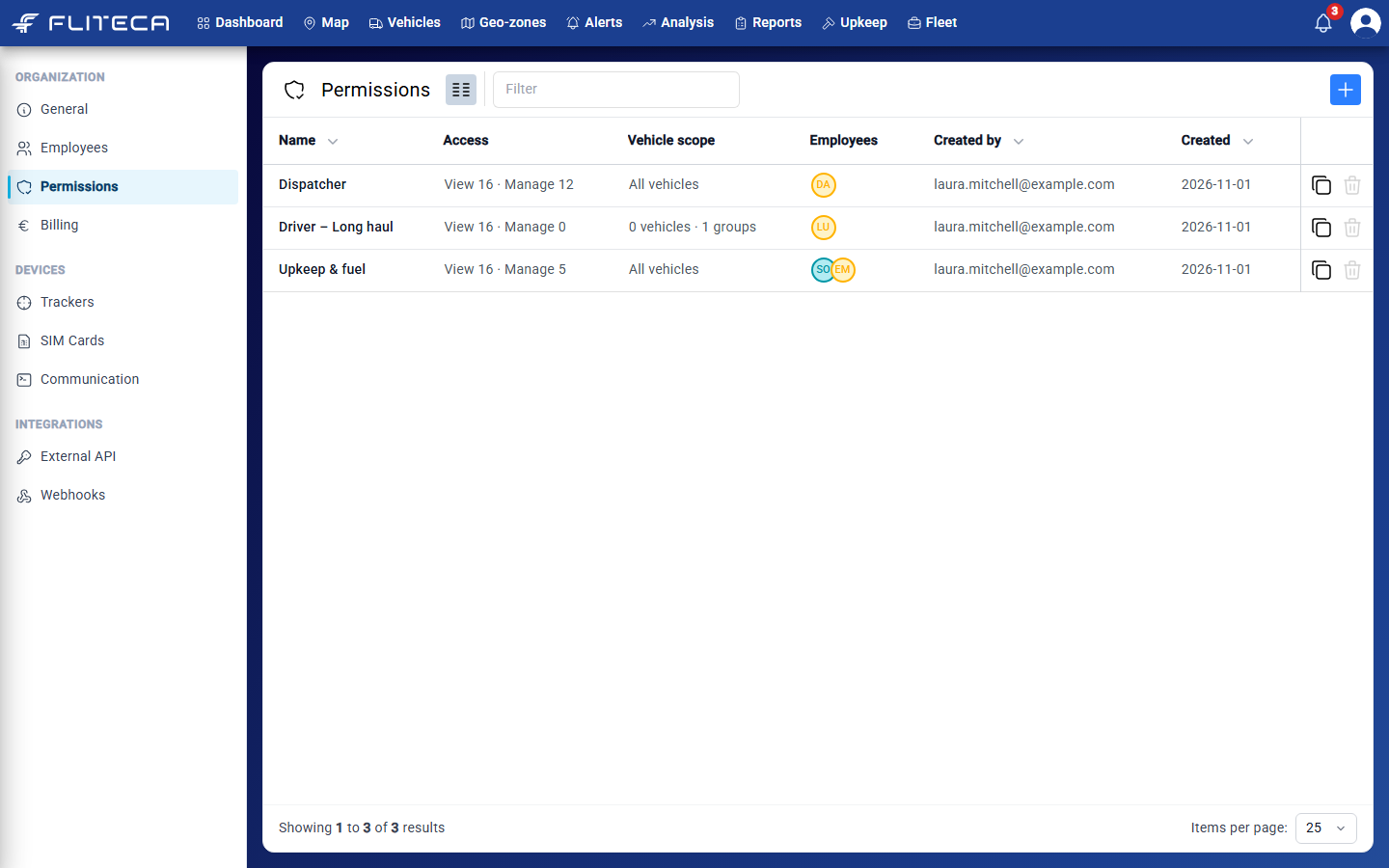
Access – how many parts of Fliteca the employees can view, and how many they can change.
Vehicle scope – All vehicles, or how many vehicles and groups they can see.
The copy button on the right makes a copy of the permission.
The bin deletes the permission. You can only delete a permission that no employee has.
Creating a permission
Click + in the top-right corner.
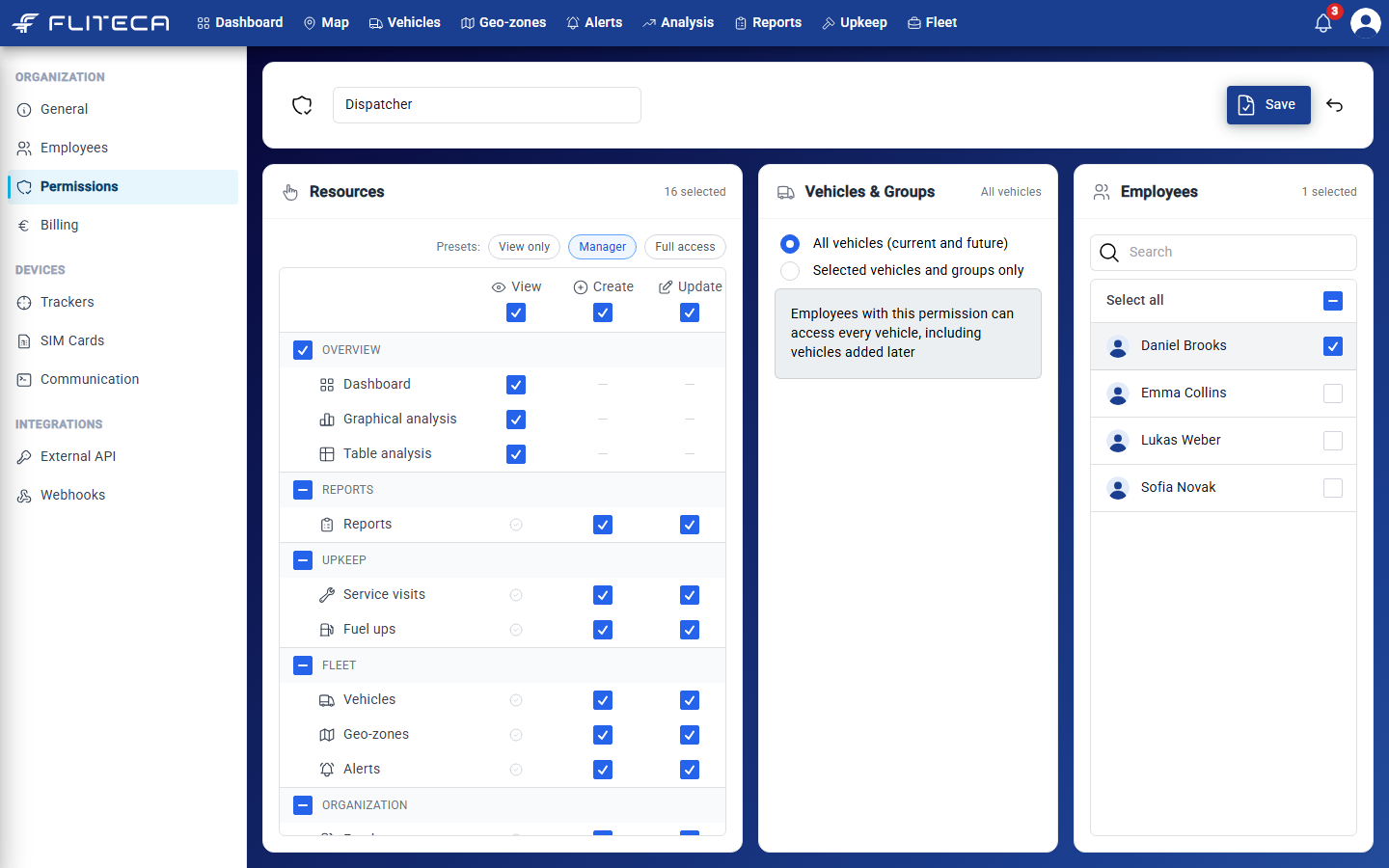
Type a name at the top, for example “Dispatcher”.
Under Resources, choose what the employees can do. The quickest way is a preset:
View only – they can look at everything, but not change anything.
Manager – they can do everything except delete.
Full access – they can do everything.
You can then tick or untick single boxes. View is always included when you tick Create or Update.
Under Vehicles & Groups, choose which vehicles they see:
All vehicles (current and future) – every vehicle, including vehicles you add later.
Selected vehicles and groups only – tick the vehicles or groups. If you tick a group, vehicles you add to the group later are included too.
Under Employees, tick the employees who get this permission.
Click Save.
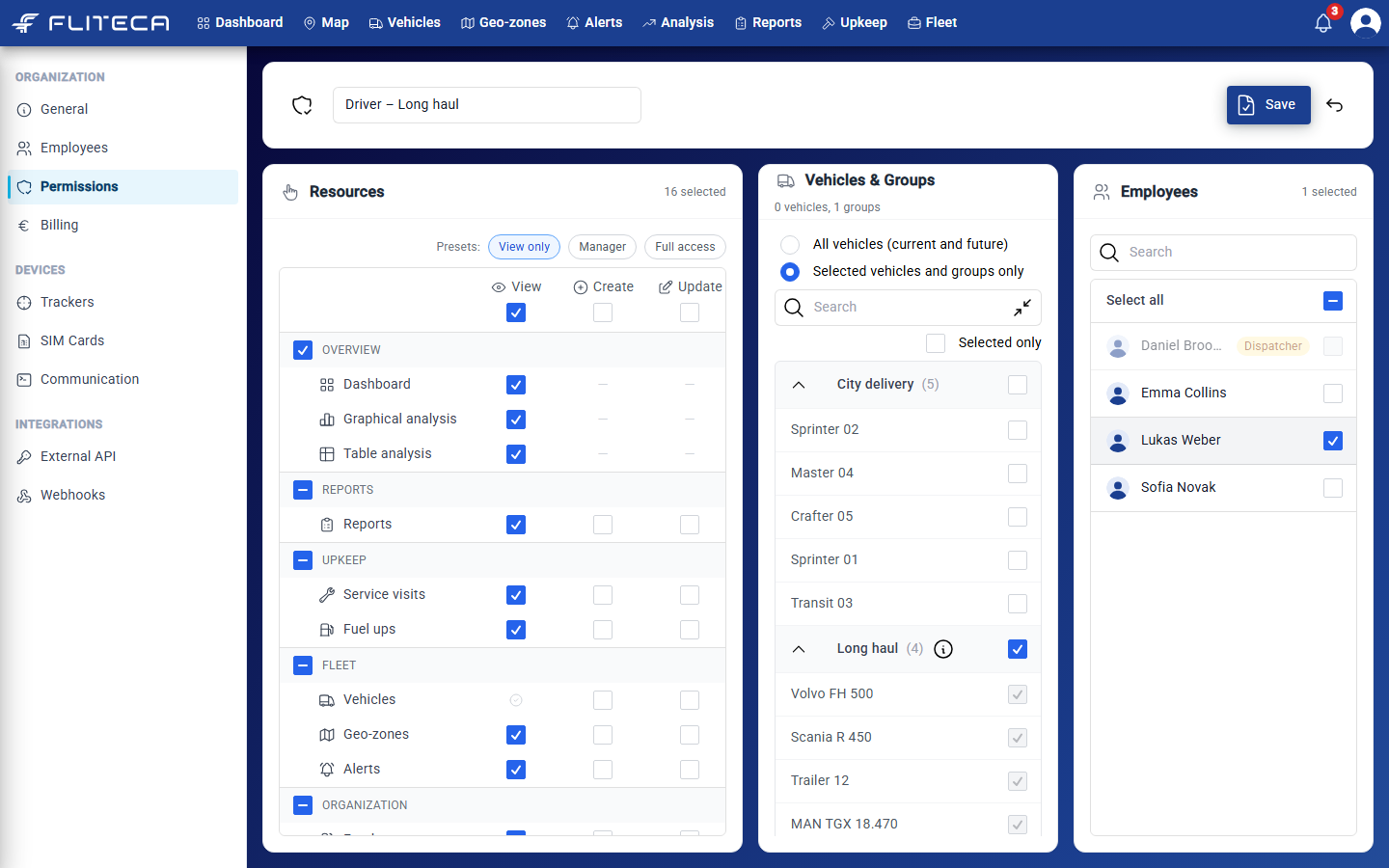
Example: a driver who only sees the trucks
This permission uses View only, and Selected vehicles and groups only with the Long haul group ticked.
Note
An employee can have only one permission. If an employee is grey in the Employees list, they already have another permission. Its name is shown next to them.
Change a permission
Click the permission in the list, change it and click Save. The arrow next to Save takes you back without saving.