Scheduled reports
A scheduled report has everything a single report has: the same steps, files and actions. On top of that, it is made again and again on its own, for example every Monday at 08:00 for the previous week. Fliteca emails every report to the people you choose and notifies you each time.
Set up a schedule
Click New report, or New schedule on the Scheduled tab.
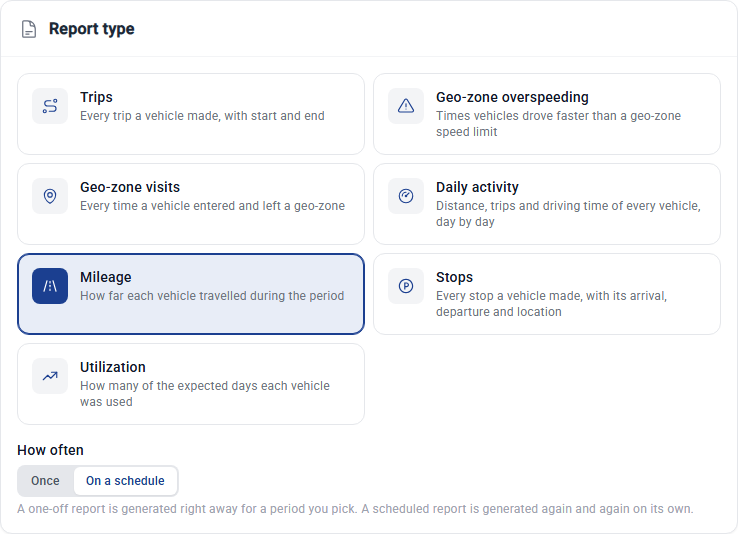
Choose the report type, and under How often click On a schedule.
Set up Data, Filters, Columns and Summary as for any report, see Create a report.
In When, choose when the report is made and which days it covers. See below.
In Output and delivery, name the schedule and add the people who should get the report by email.
Click Schedule.
The schedule appears on the Scheduled tab. The first report is made at the next time you chose.
When it runs
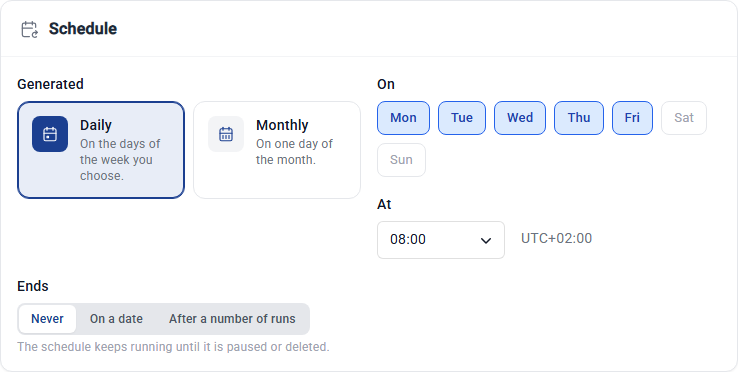
Generated – Daily on the days you tick under On (Monday to Friday at first), or Monthly on one On day: 1 to 30 or Last day. In months shorter than the day you chose, the report is made on the month’s last day.
At – the hour the report is made, in the report’s time zone.
Ends:
Never – the schedule runs until you pause or delete it.
On a date – pick the Last day. Reports due on that day are still made.
After a number of runs – the schedule stops after this many reports.
When a schedule ends, it is paused, not deleted. Switch it on again to continue.
A report can start up to 5 minutes after the time you chose.
Which days each report covers

Reported period |
Every report covers |
|---|---|
Previous day |
The whole day before the day it is made, whatever the hour |
Since the previous report |
The time since the previous run of the schedule. A report every weekday at 08:00 covers Friday 08:00 to Monday 08:00 when it runs on Monday. Daily activity, mileage and utilization reports cover whole days instead: Friday, Saturday and Sunday. |
Custom |
The last number of days, weeks, months or years before the run. Daily activity, mileage and utilization reports cover whole days before the day of the run. |
Previous month |
The whole previous calendar month. Only for monthly schedules. |
With Since the previous report, every report starts where the one before it in the schedule ended, so the reports follow on from each other without overlaps. A skipped or paused run is not made up for later, so its time is not in any report.
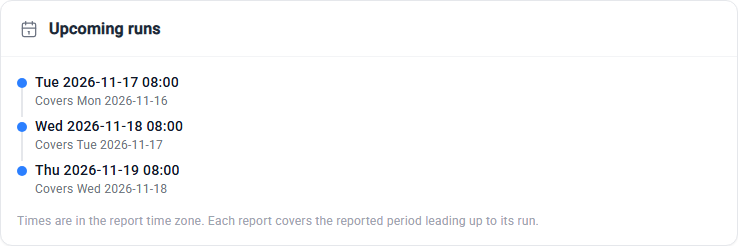
Upcoming runs shows the next three runs and the days each report will cover, so you can check them before you save.
Names and email
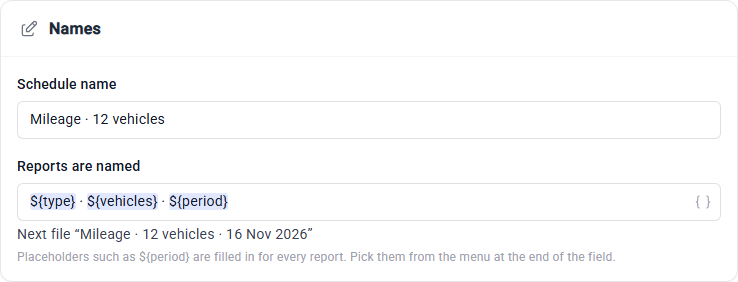
Schedule name – the name you see on the Scheduled tab.
Reports are named – the name every report gets. Keep a placeholder such as
${period}in it, so every file has its own name. See the placeholders.
Open Also send by email to add up to 3 addresses, the same as for a single report.
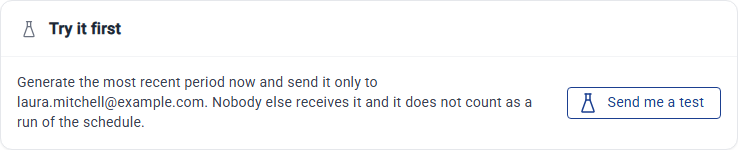
Click Send me a test to make the most recent period now and email it only to you. Nobody else gets it, and it does not count as a run of the schedule.
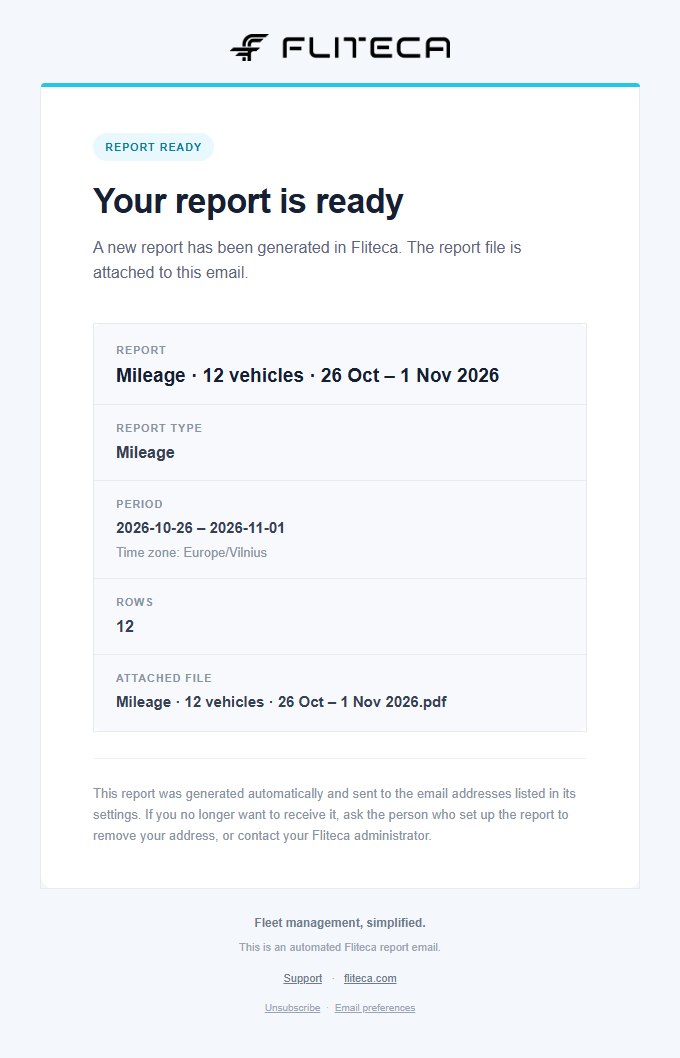
Each time a report is ready, everyone in Also send by email gets it with the file attached:
Manage schedules
The Scheduled tab lists your schedules, the next one first. The bar above the tabs tells you when the next report runs.
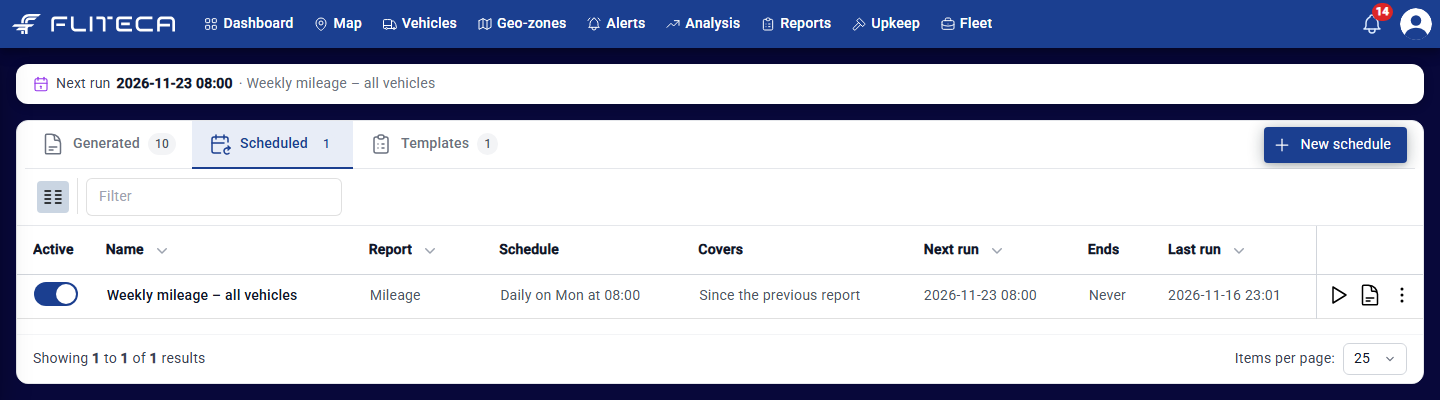
Active – switch it off to pause the schedule, and on to resume it. A paused schedule makes no reports, and the missed runs are not made later.
The play button (Generate now) makes a report right away. Fliteca shows the period it will cover first. The report is emailed like a scheduled one, but the next run stays as it was.
The document button (Show generated reports) opens the Generated tab with the reports of this schedule only.
Click a row to change the schedule. You can change everything except the report type.
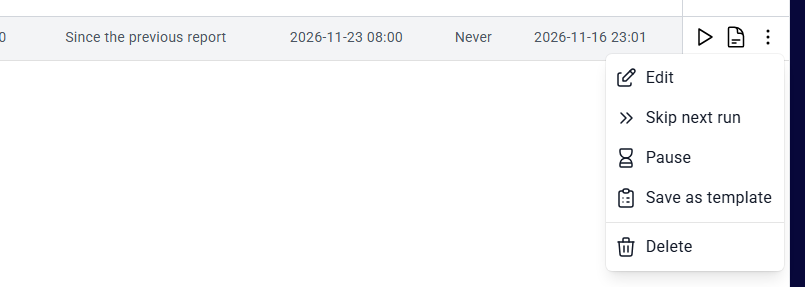
Skip next run – the next report is not made. The schedule continues with the run after it.
Pause / Resume – the same as the Active switch.
Save as template – keep the settings to make the same report again later, see Templates.
Delete – choose what to delete:
Schedule only – no more reports are made. The reports it made stay, as one-off reports.
Generated reports only – the reports it made are deleted, and the schedule keeps running.
Schedule and generated reports – both are deleted.
The bar above the tabs says Overdue since when a run is more than 5 minutes late.
The reports a schedule made
Every report a schedule makes appears on the Generated tab. Click From schedules to see only those. The Schedule column tells you which schedule made each report.
They have the same actions as a single report: download, Download as…, Save as template and Delete. Run again copies the report into a new single report, for example to make it for a different period.