Warning
This feature is designed for advanced users only. Please proceed at your own risk.
Tracker commands
You can send GPRS commands to your trackers. For example, ask a tracker for its firmware version, clear records, restart it. This might be useful if the tracker is misbehaving and you want to debug it.
You can send a command from four places. They all use the same command window.
Where |
Best for |
|---|---|
Fleet › Communication |
Any vehicles, and the full history of every command |
The vehicle card on the map |
One vehicle you are looking at right now |
Fleet › Trackers |
Trackers you pick from the tracker list |
Vehicles › Groups |
Every vehicle in a group |
Your command list
This view is available in Fleet › Communication. The list shows every command, the tracker it went to, the tracker’s answer and when it was sent.
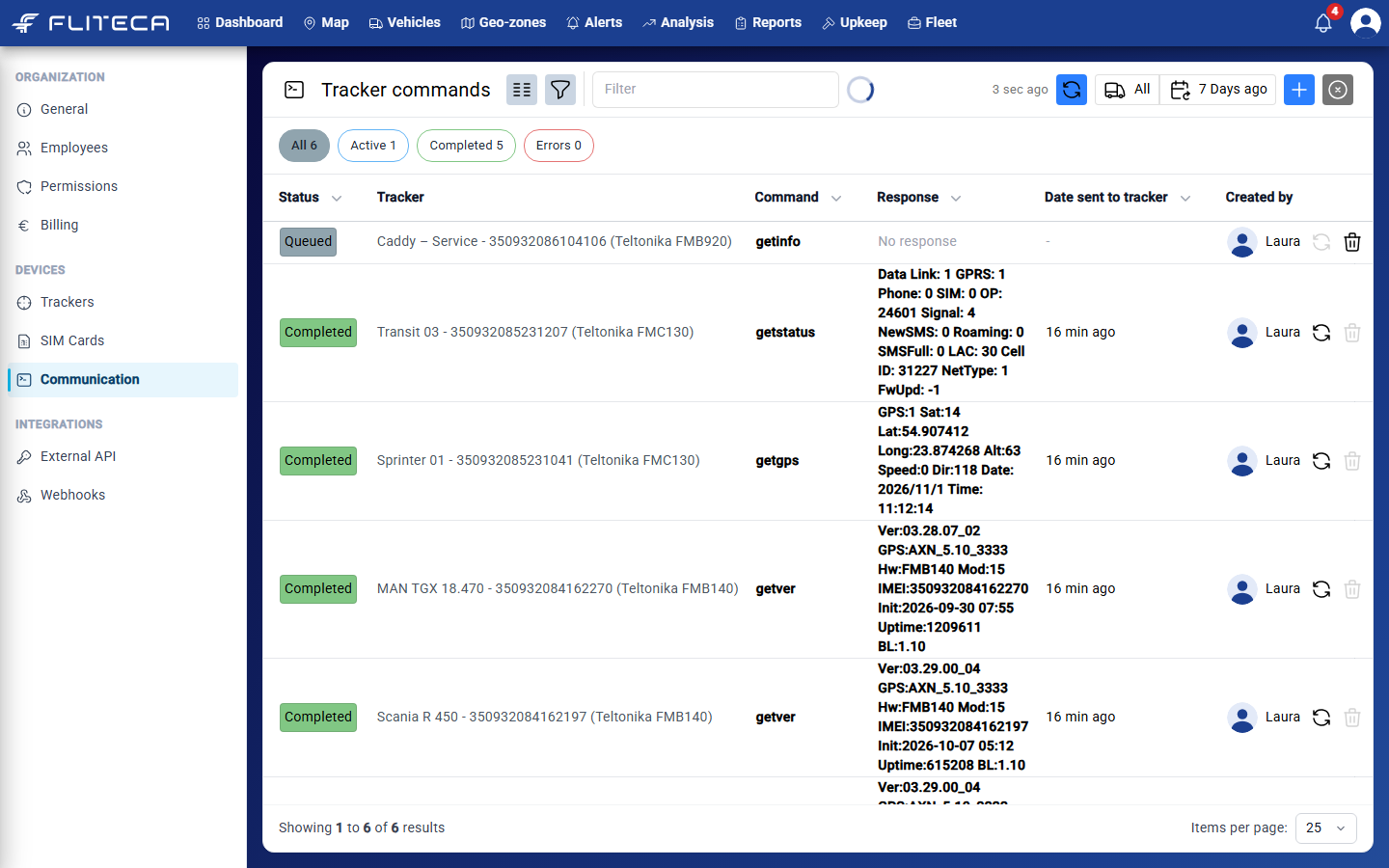
Click All, Active, Completed or Errors to show only those commands.
Use the vehicle and date buttons at the top to choose which commands you see.
Click a command to see all its details.
The round arrows in a row send the command again. The bin deletes a command that was not sent yet.
The grey button in the top-right corner cancels every command that was not sent yet.
What the statuses mean
Status |
Meaning |
|---|---|
Queued / Pending |
Waiting for a tracker. Will send as soon as possible. |
Waiting response |
Request sent to tracker. Fliteca waits for its answer. |
Completed |
The tracker answered. The answer is in the Response column. |
Error |
The command was cancelled or expired, or the tracker did not answer in time. |
Send a command from Communication
Click Fleet in the top menu, then Communication on the left.
Click + in the top-right corner.
Tick the vehicles that should get the command. Click Next.
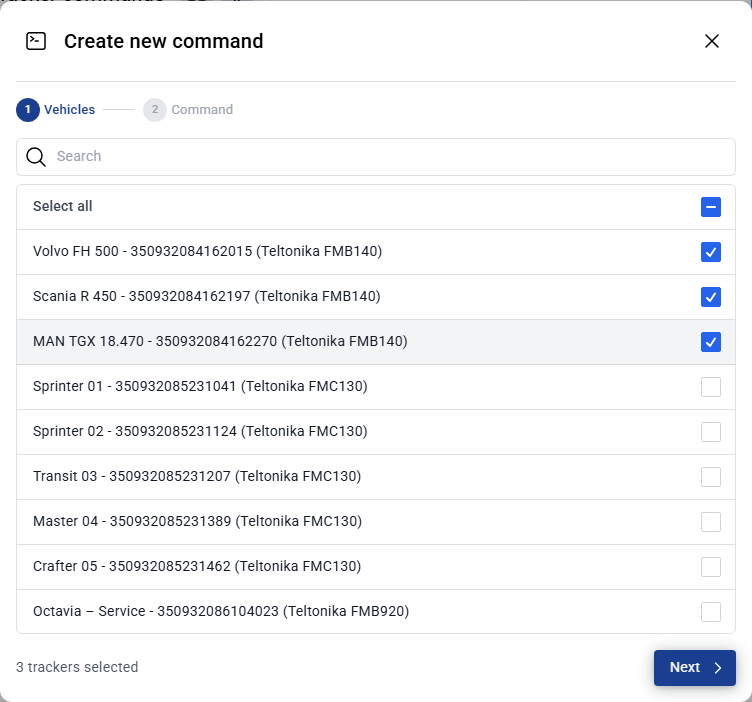
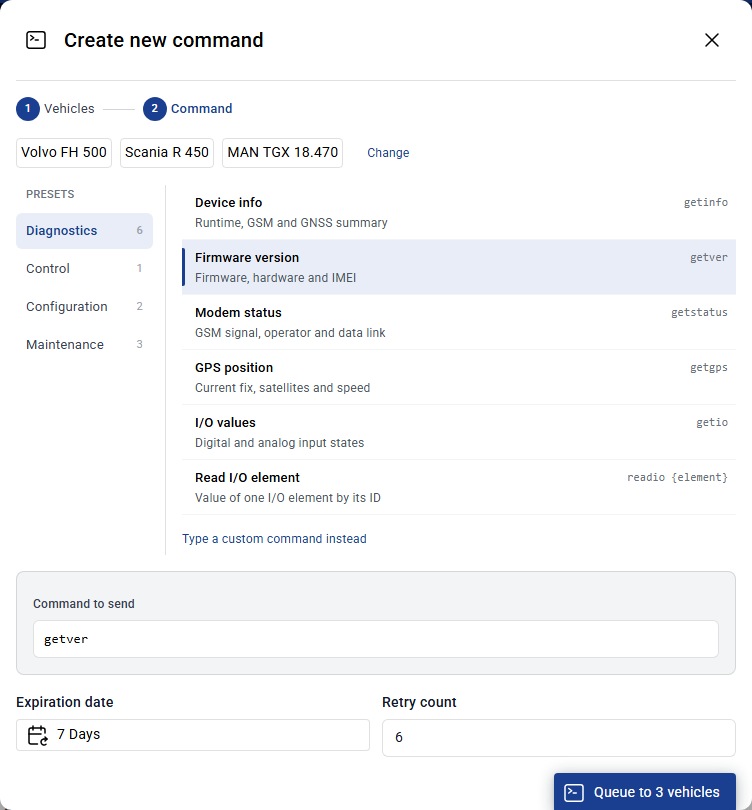
Choose a command from a group on the left:
Diagnostics – read information, such as the firmware version, the GPS position or the modem status. These commands change nothing.
Control – switch the tracker’s outputs on or off.
Configuration – read or change a setting of the tracker.
Maintenance – restart the tracker, connect it to the Teltonika update server or delete stored records.
Click Type a custom command instead if you know the exact command.
Optional: change the Expiration date and the Retry count. We reccomend keeping the default parameters, unless there is a specific need to change them. If the tracker does not get the command before the expiration date, the command stops with an error.
Click Queue to … vehicles.
Tip
The manufacturers often publish all available commands in your specific tracker documentation. For reference - FMC150 GPRS command list
Send a command to one vehicle from the map
Click the commands button (the last icon in the row of buttons on the card). A panel opens with the commands this vehicle got and their answers.
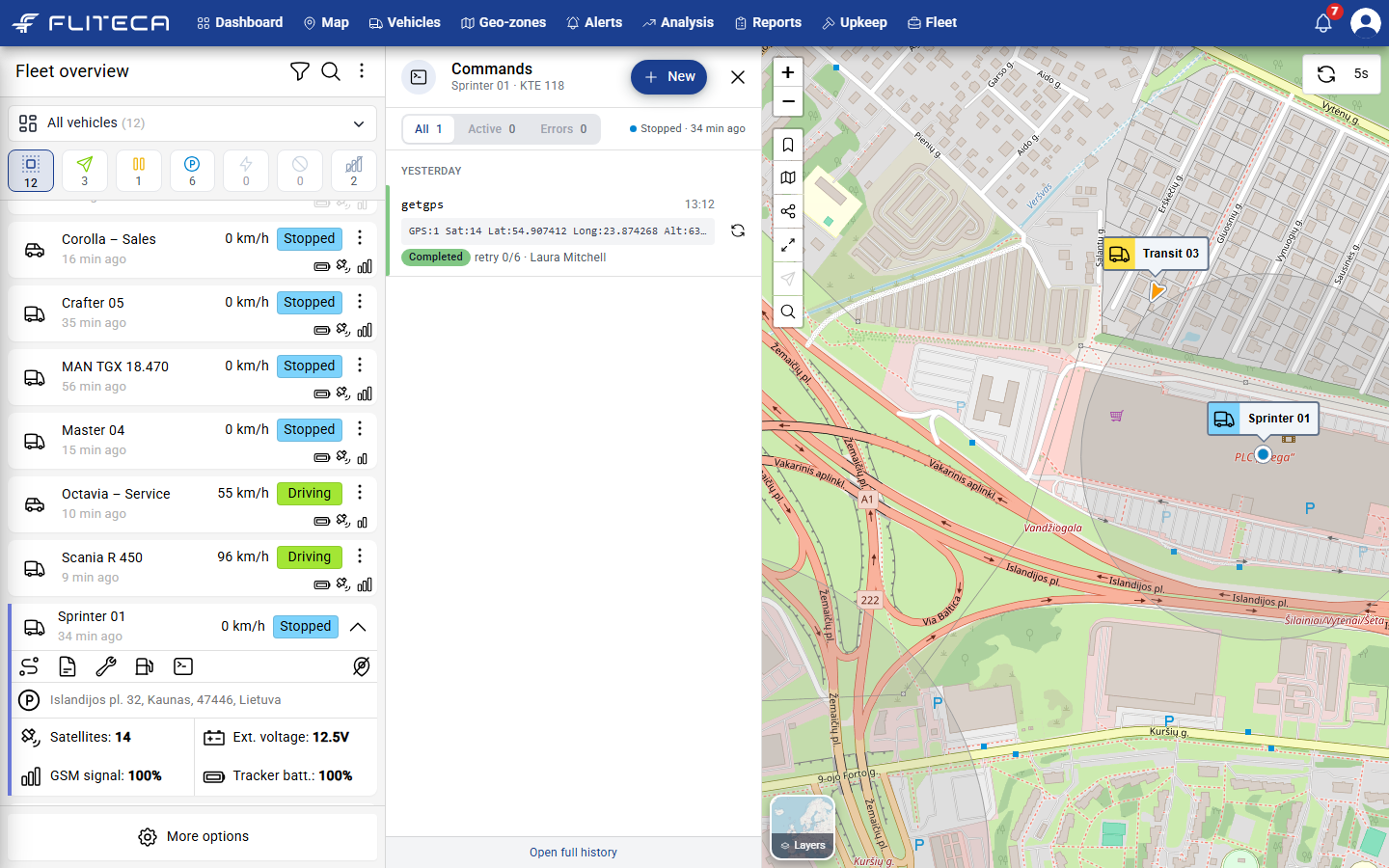
Click New. Recent shows the commands you sent before, so you can send them again with one click.
Choose a command and click Queue command.
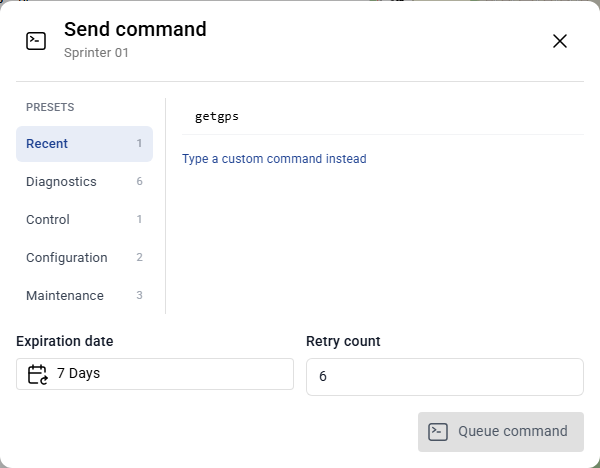
Click Open full history at the bottom of the panel to see all commands of this vehicle.
Send a command to trackers from the tracker list
Click Fleet in the top menu, then Trackers on the left.
Click the selection button next to the title. Boxes appear in the list.
Tick the trackers. A bar at the bottom shows how many you selected.
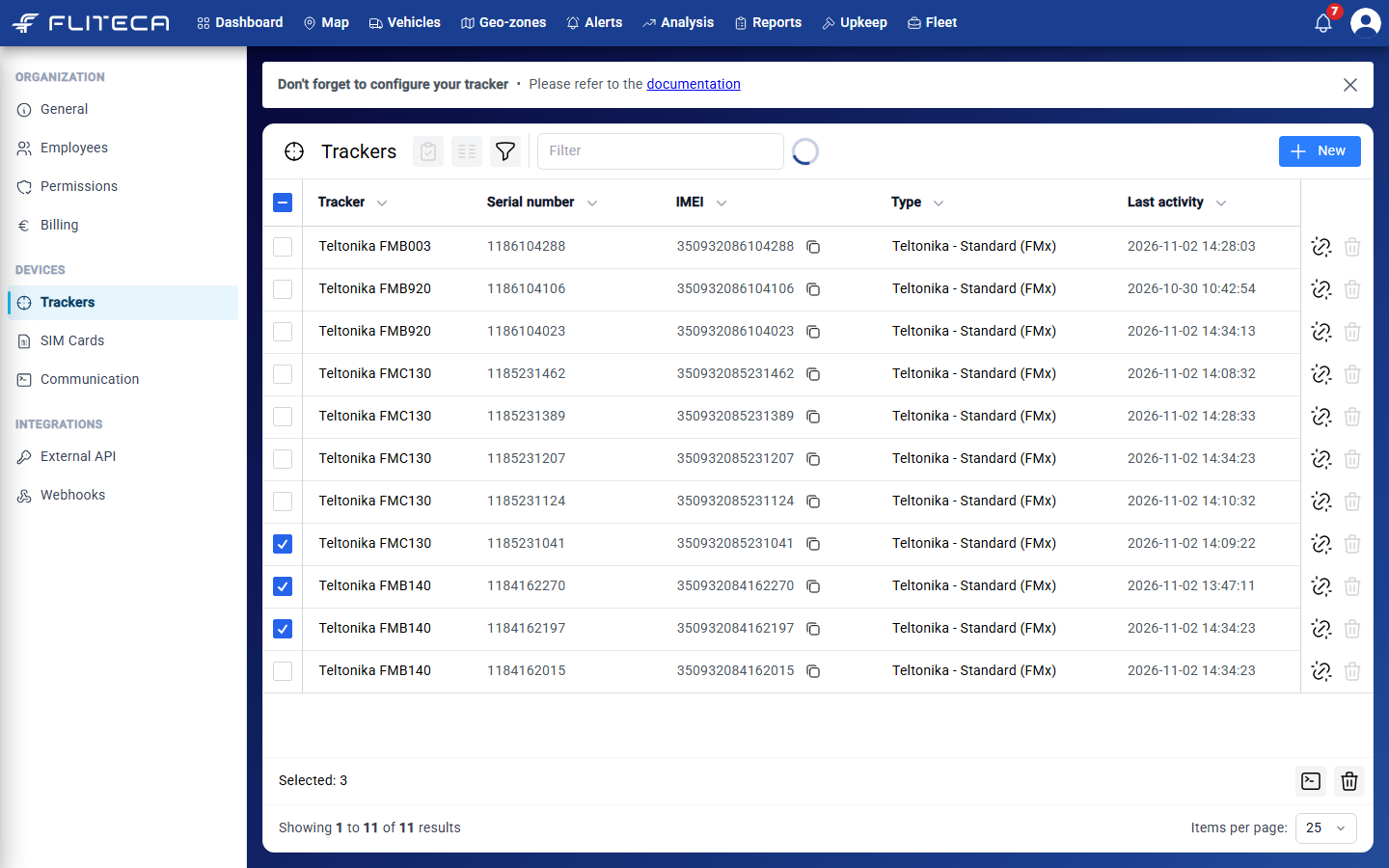
Click the command button in the bar. The command window opens with the vehicles of these trackers.
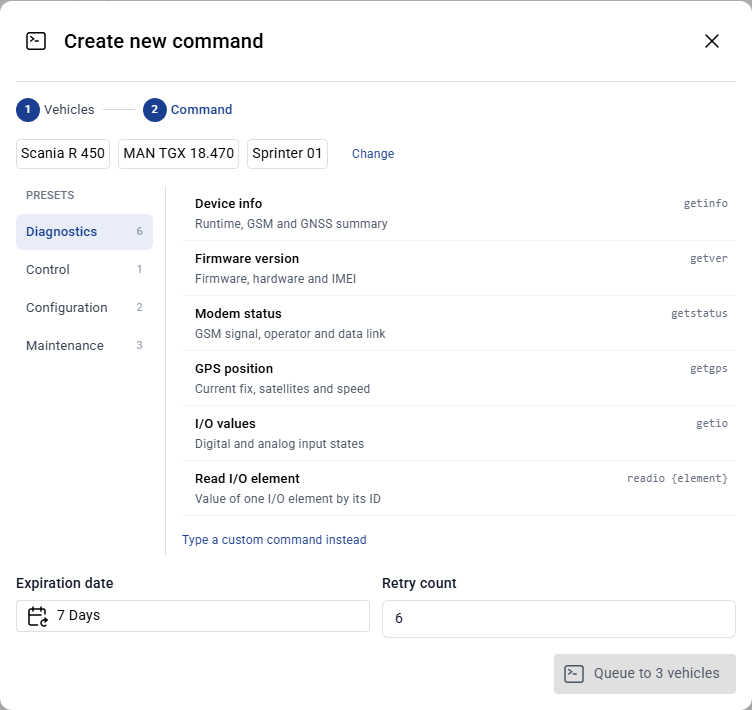
Choose a command and click Queue to … vehicles.
Send a command to a whole group
Click Vehicles in the top menu, then the Groups button above the list.
Click the command button next to the group.
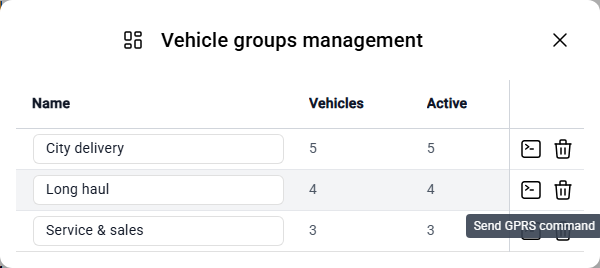
The window lists the vehicles of the group that have a tracker. Click Change to leave some out.
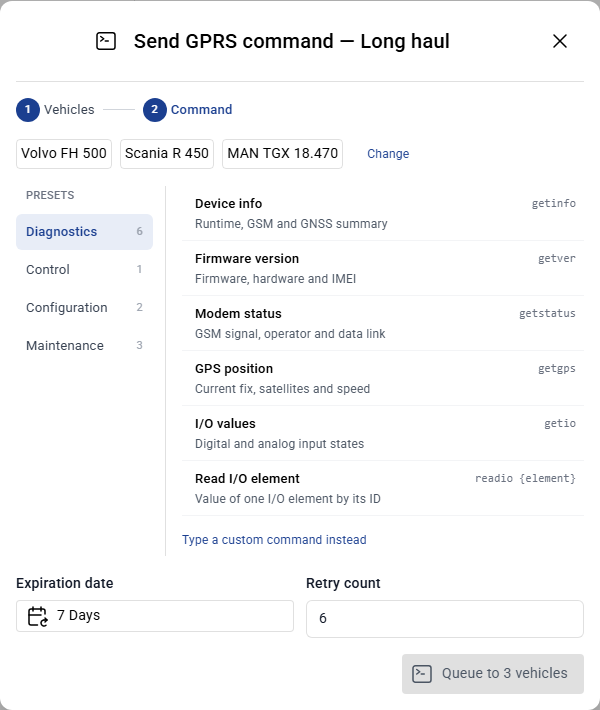
Choose a command and click Queue to … vehicles.
Warning
Commands in Configuration and Maintenance can take a tracker offline or delete data that it did not send yet. Read the description under each command before you send it.