Your profile and settings
Change your name and photo, protect your account, and choose how Fliteca looks just for you. These settings are only for you. They do not change anything for your colleagues.
To navigate to this menu, click on your picture in the top-right corner and choose Profile.
Save your changes
When you change something, a bar with Save changes appears at the bottom of the page. Click it to save. A dot next to a section on the left means that section has changes that are not saved.
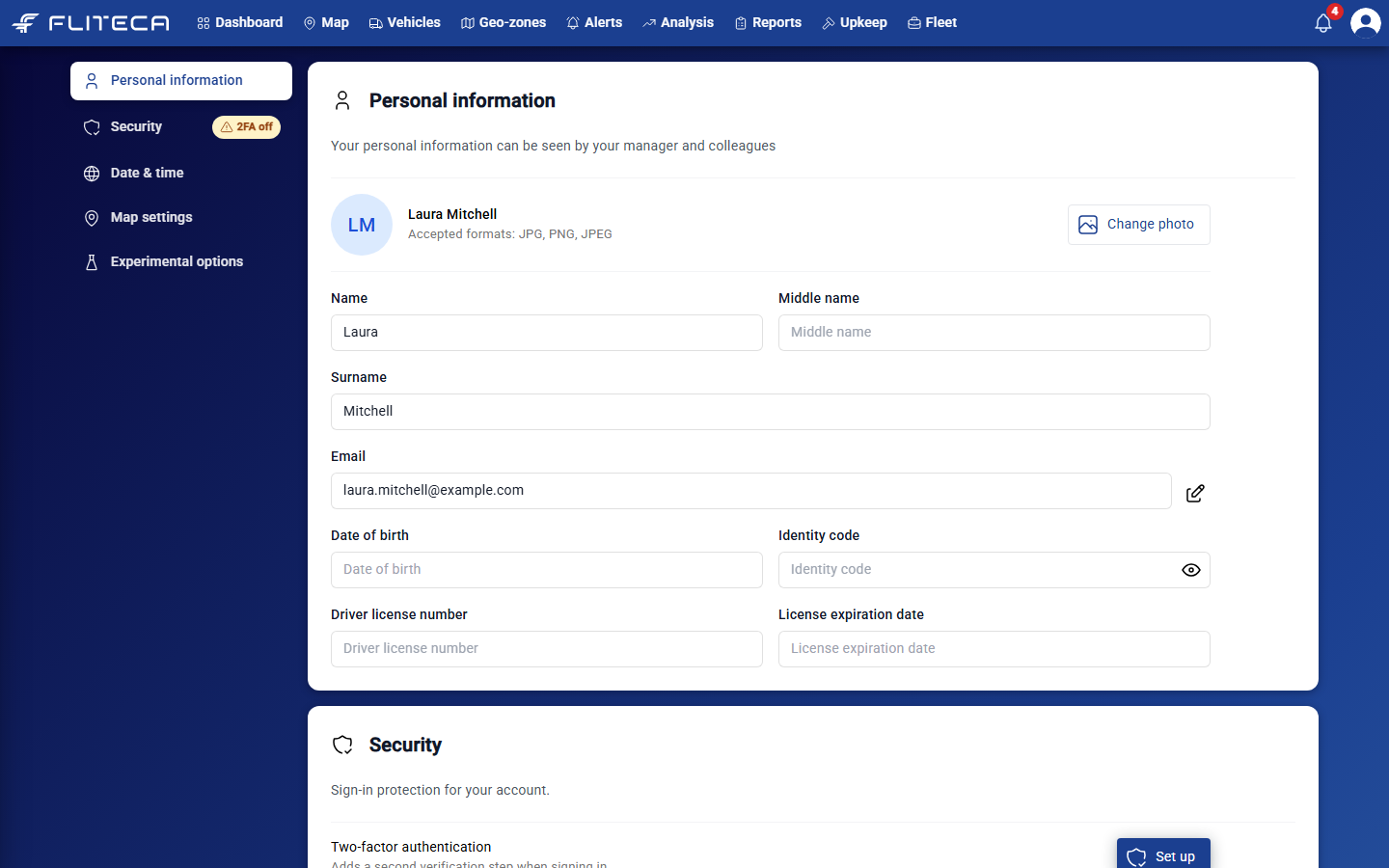
Personal information
Click Change photo to upload a picture (JPG or PNG).
Change your name, date of birth and driver license details.
To change your email address, click the pencil next to it.
Your manager and colleagues can see this information.
Two-factor authentication
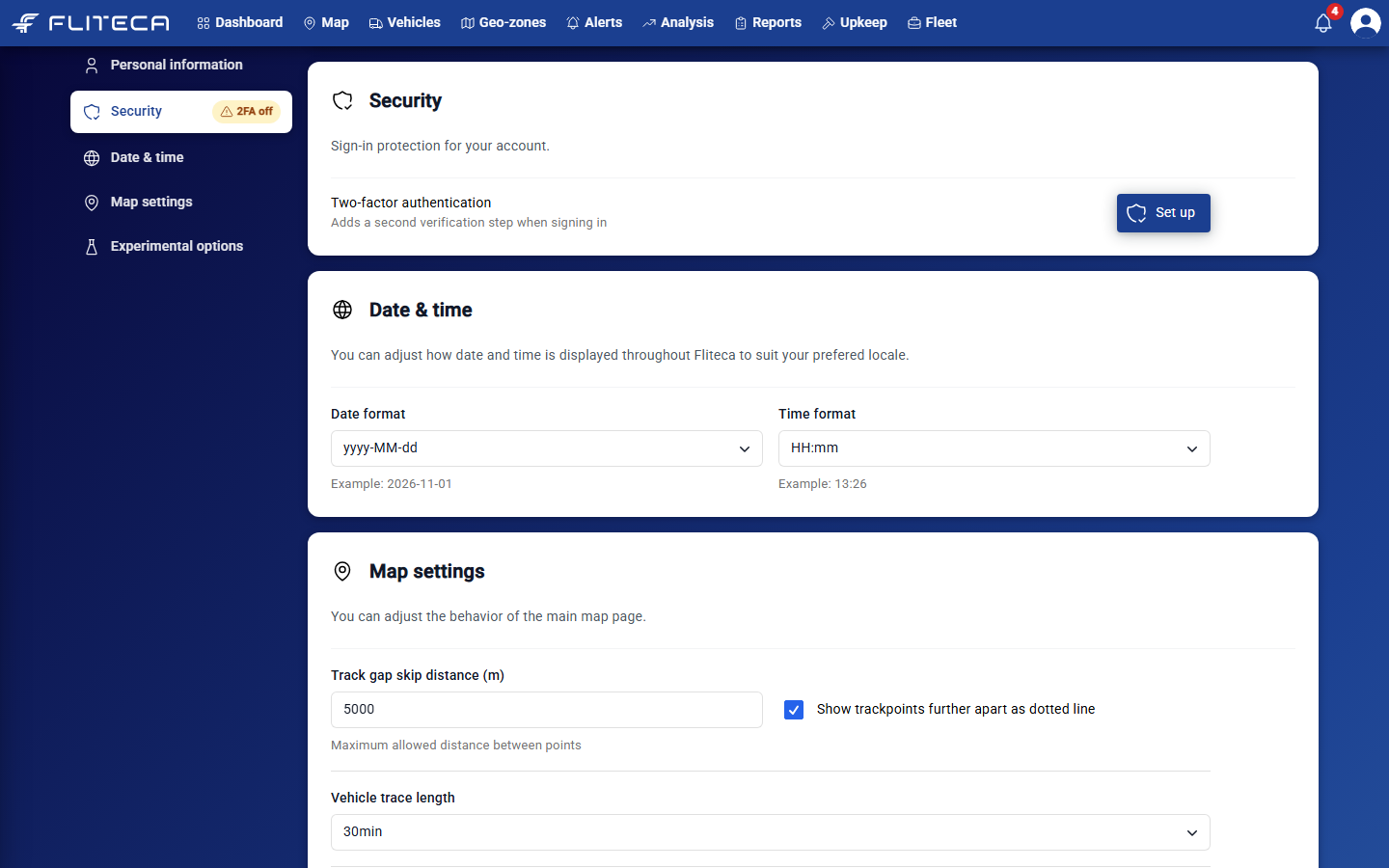
Two-factor authentication (2FA) protects your account if someone learns your password. When you sign in, Fliteca also asks for a code from an app on your phone.
Install an authenticator app on your phone, for example Microsoft Authenticator.
In Security, click Set up.
Scan the QR code with the app.
Type the code that the app shows, to finish.
The 2FA off badge next to Security disappears when 2FA is on.
Date and time
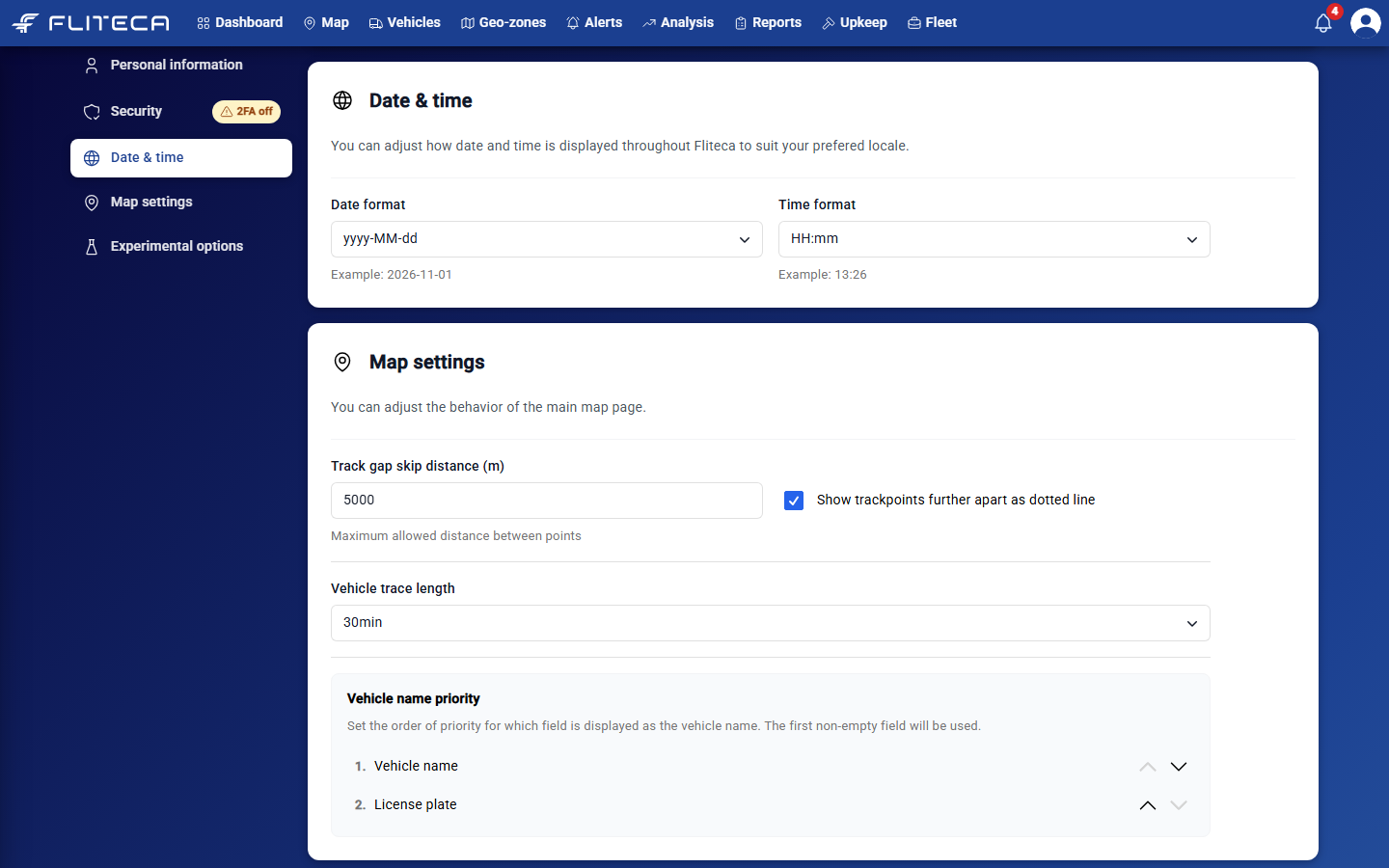
Choose how dates and times are shown everywhere in Fliteca. The example under each field shows the result.
Map settings
Track gap skip distance (m) – if two points of a route are further apart than this, the map does not join them with a line. Tick Show trackpoints further apart as dotted line to join them with a dotted line instead.
Vehicle trace length – how long the tail behind each vehicle on the map is.
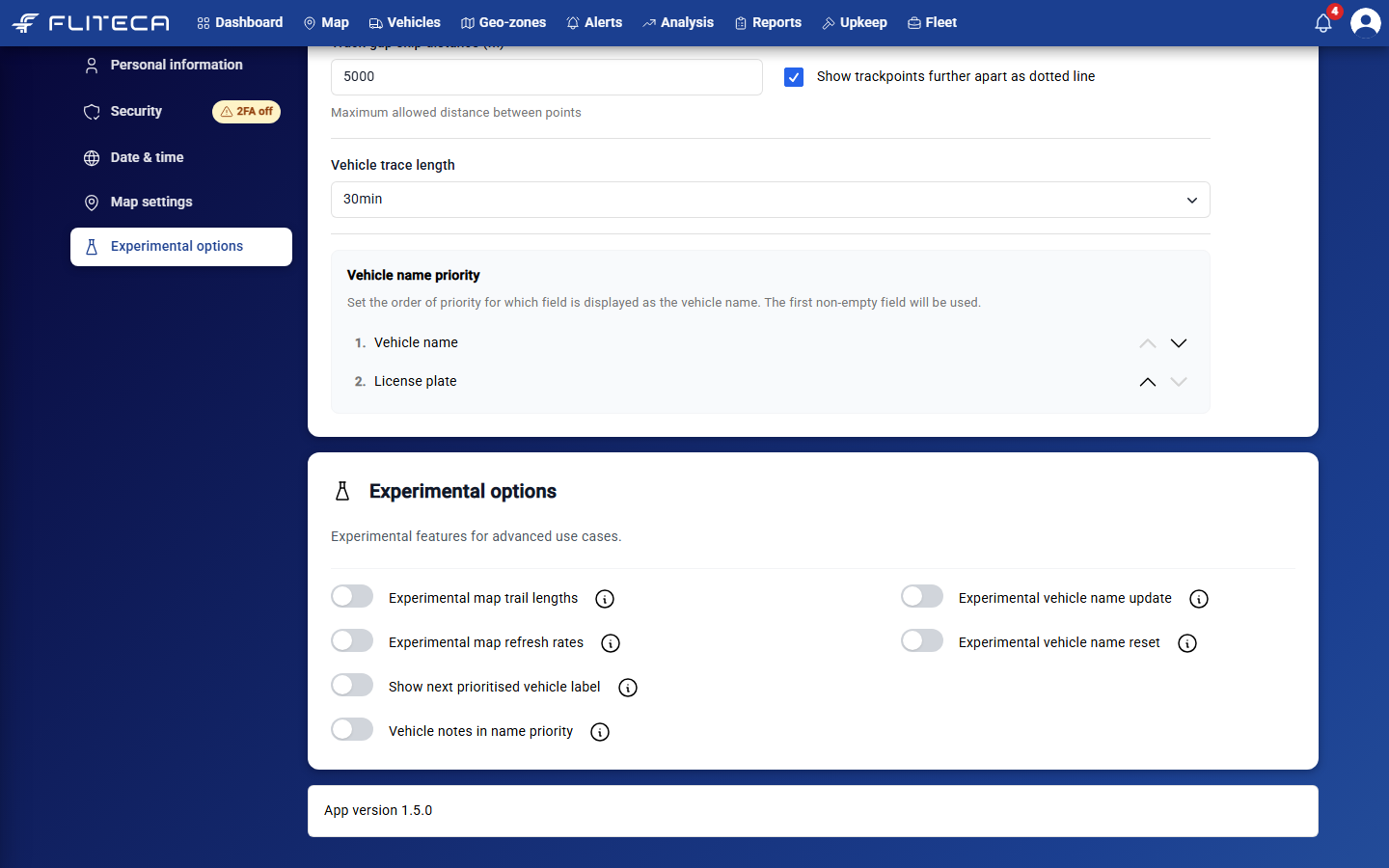
Vehicle name priority – which name the map shows for each vehicle. Use the arrows to change the order. For example, put License plate first to see plates instead of names.
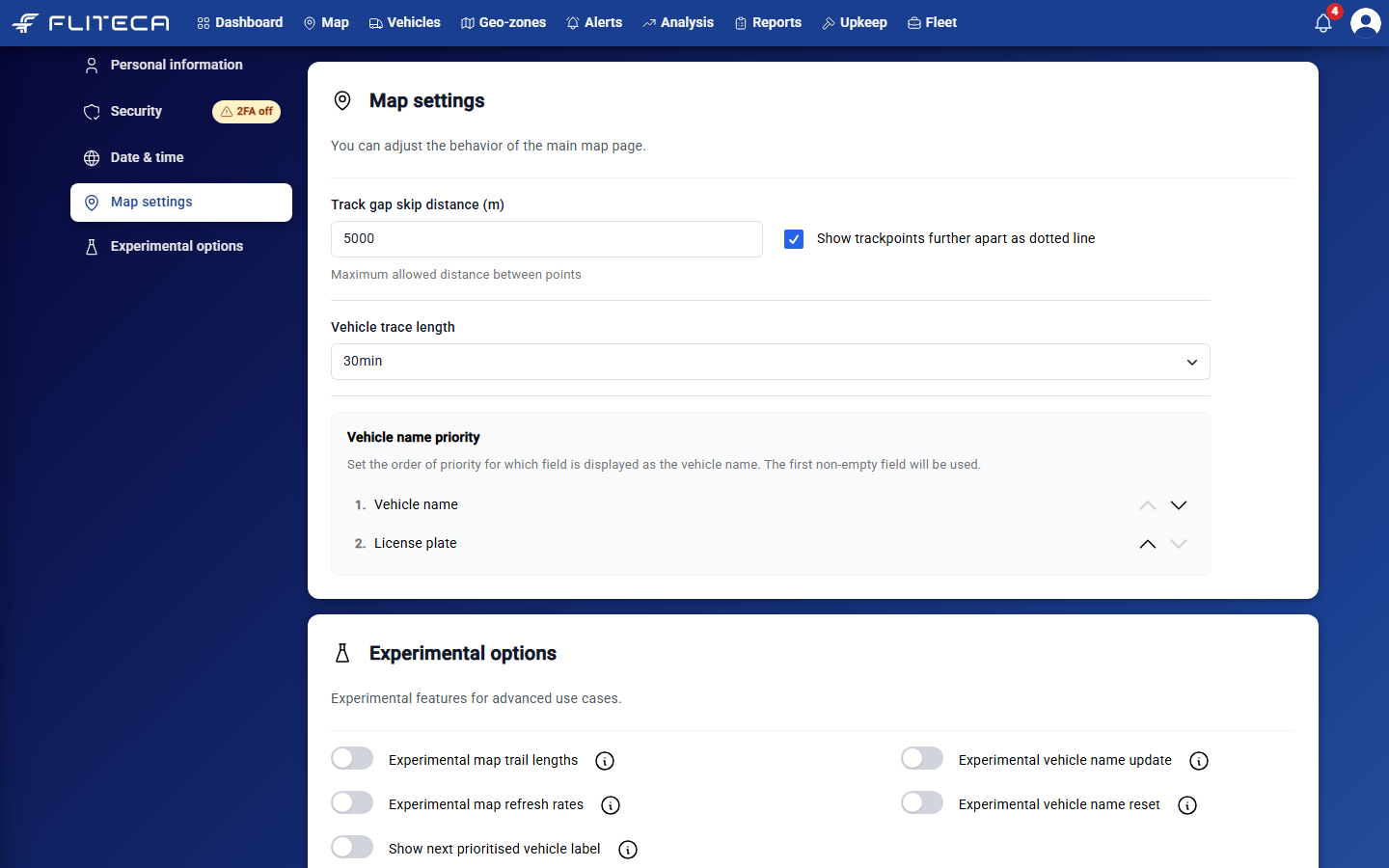
Experimental options
These are new features that we are still testing. Point at the i next to an option to read what it does. Switch an option on to try it.