Templates
A template keeps the settings of a report: the type, the vehicles, the filters, the columns, the format and the other steps. The next time, one click fills them all in.
Save a template
There are three ways:
In the last step of a new report, tick Save these settings as a template. The report is made too.

Click Save as template in the three dots of a report on the Generated tab, or of a schedule on the Scheduled tab.
Click New template on the Templates tab. It has the same steps as a new report, but saves the template without making a report.
Use a template
On the Templates tab, click the play button (Use template) of a template.
Or click New report and pick the template under Start from a template in the first step.
Every step is filled in with the template’s settings. Change them if you like, then click Generate. The template itself stays as it is.
Manage templates
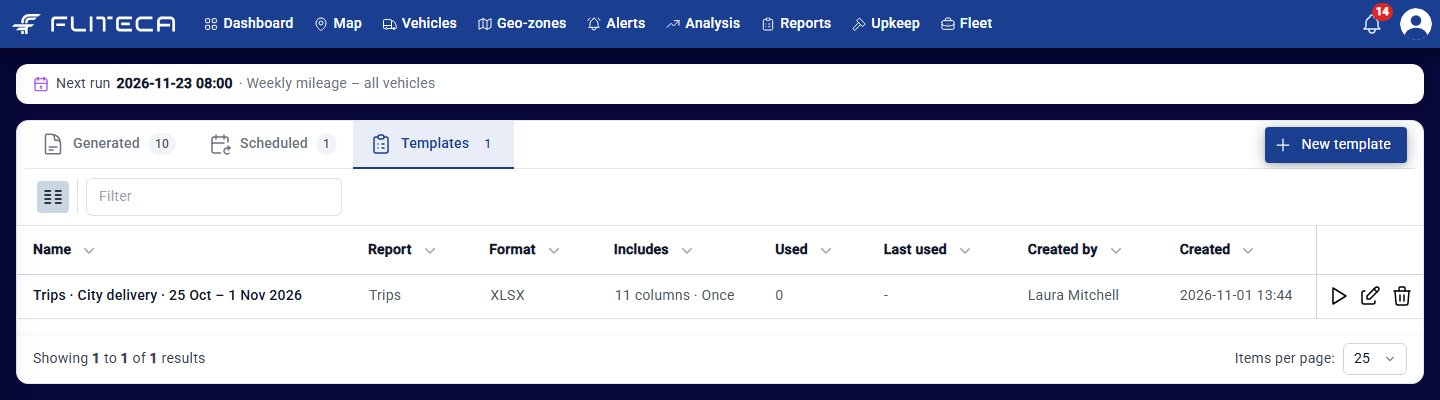
The Templates tab lists your templates with their report type and format, what they include, and how often and when they were last used.
The pencil button (Edit) changes the template.
The bin button (Delete) deletes it.