Webhooks
A webhook sends an alert to your own software as soon as it completes. This page shows every webhook that Fliteca sent, so you can make sure that your software got them.
To navigate to this page, click Fleet in the top menu, then Webhooks on the left.
To set up a webhook, add a Webhook action to an alert. See the alerts page.
The Webhooks page
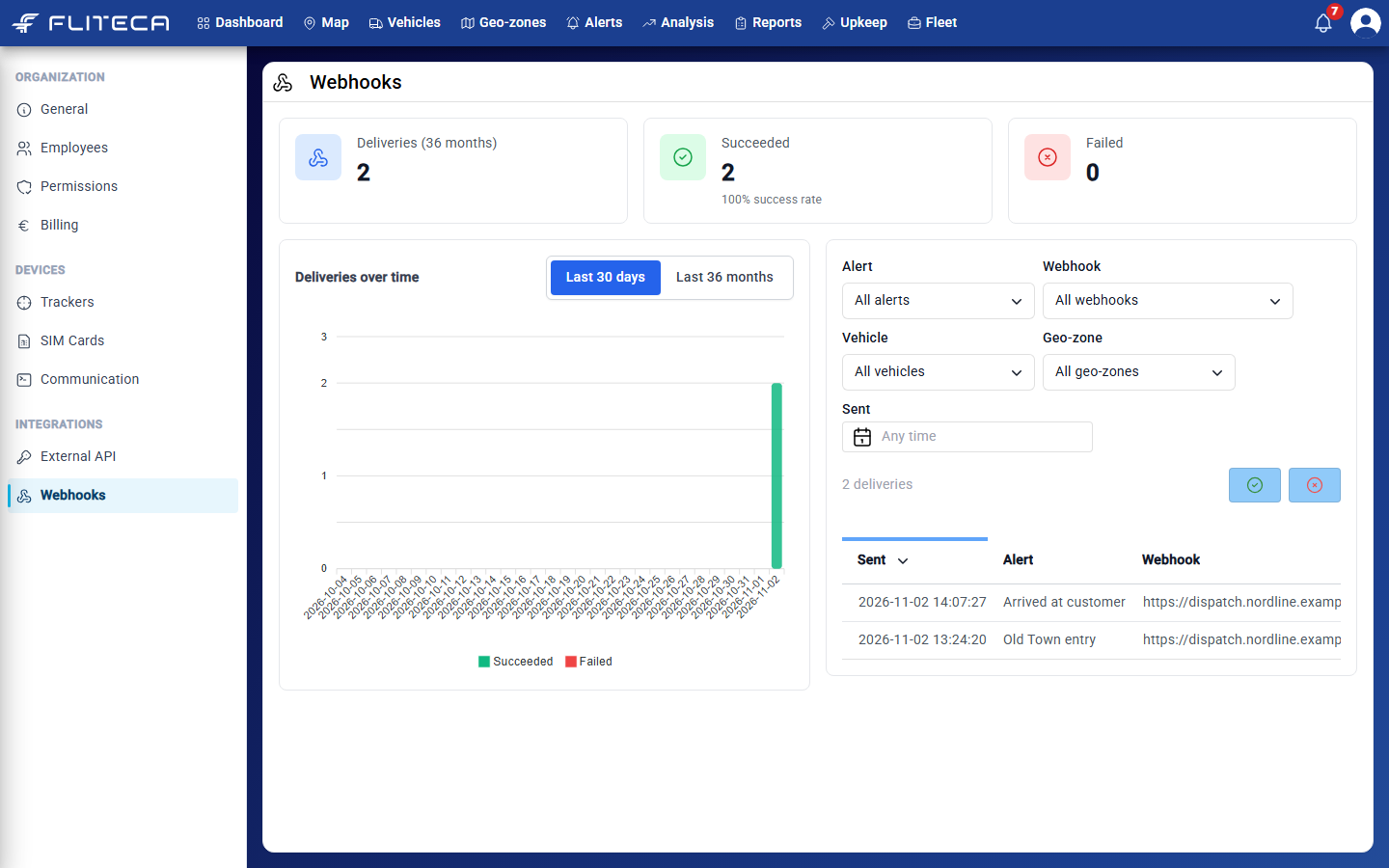
The cards at the top show how many webhooks were sent, how many succeeded and how many failed.
Deliveries over time shows the deliveries per day or per month. Green bars succeeded, red bars failed.
On the right is the list of deliveries, newest first.
A delivery succeeds when your software answers that it got the webhook. If it answers with an error, or does not answer within 30 seconds, the delivery fails.
Find a delivery
Use Alert, Webhook, Vehicle, Geo-zone and Sent to show only some deliveries. Clear removes the filters.
Click the green button to show only deliveries that succeeded, or the red button to show only failed ones.
Click the copy button in a row to copy your software’s answer. This helps your IT team find problems.
Send a webhook again
If your software was down when an alert fired, you can send the webhook again.
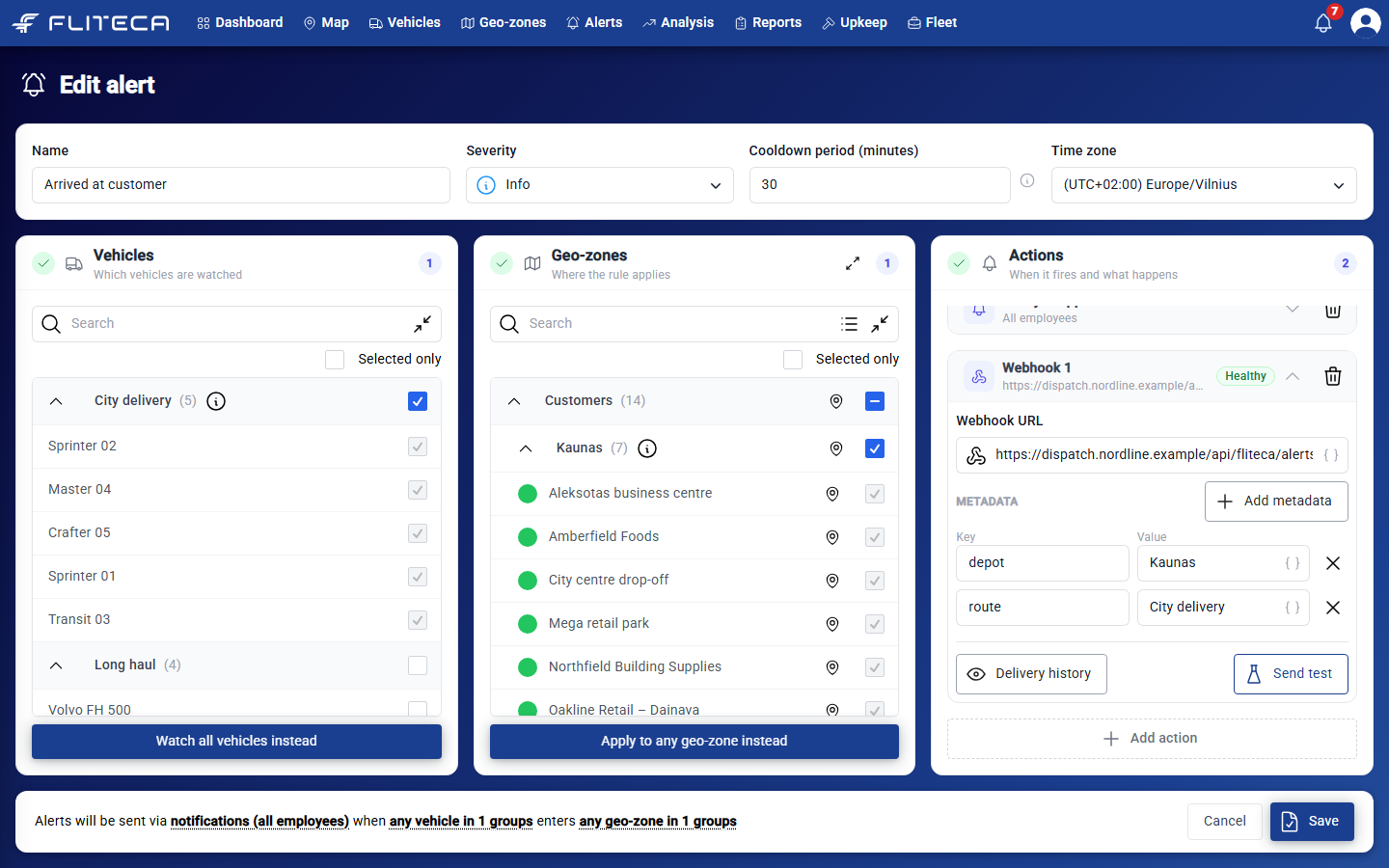
Click Alerts in the top menu and click the alert.
Under Actions, click the webhook to open it. Click Delivery history.
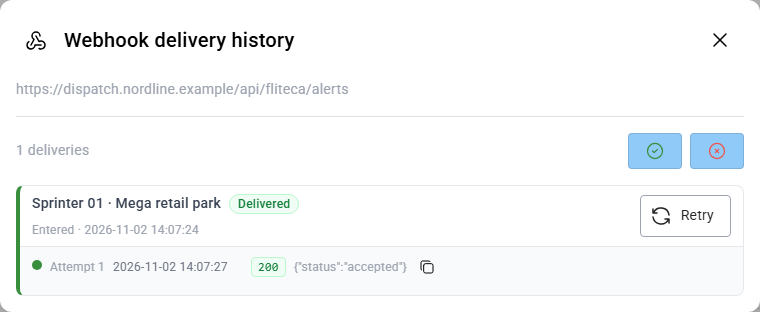
The window shows every delivery of this webhook, newest first. Each delivery shows the vehicle and geo-zone, and every attempt with your software’s answer. Find the delivery and click Retry.
Tip
Send test in the webhook action sends a test webhook right away. Use it to check that your software gets webhooks before you rely on the alert.