Bulk tracker import
To facilitate large tracker migrations, or purchases a special option exists to register multiple trackers at once from an excel file. To add one tracker, see Trackers.
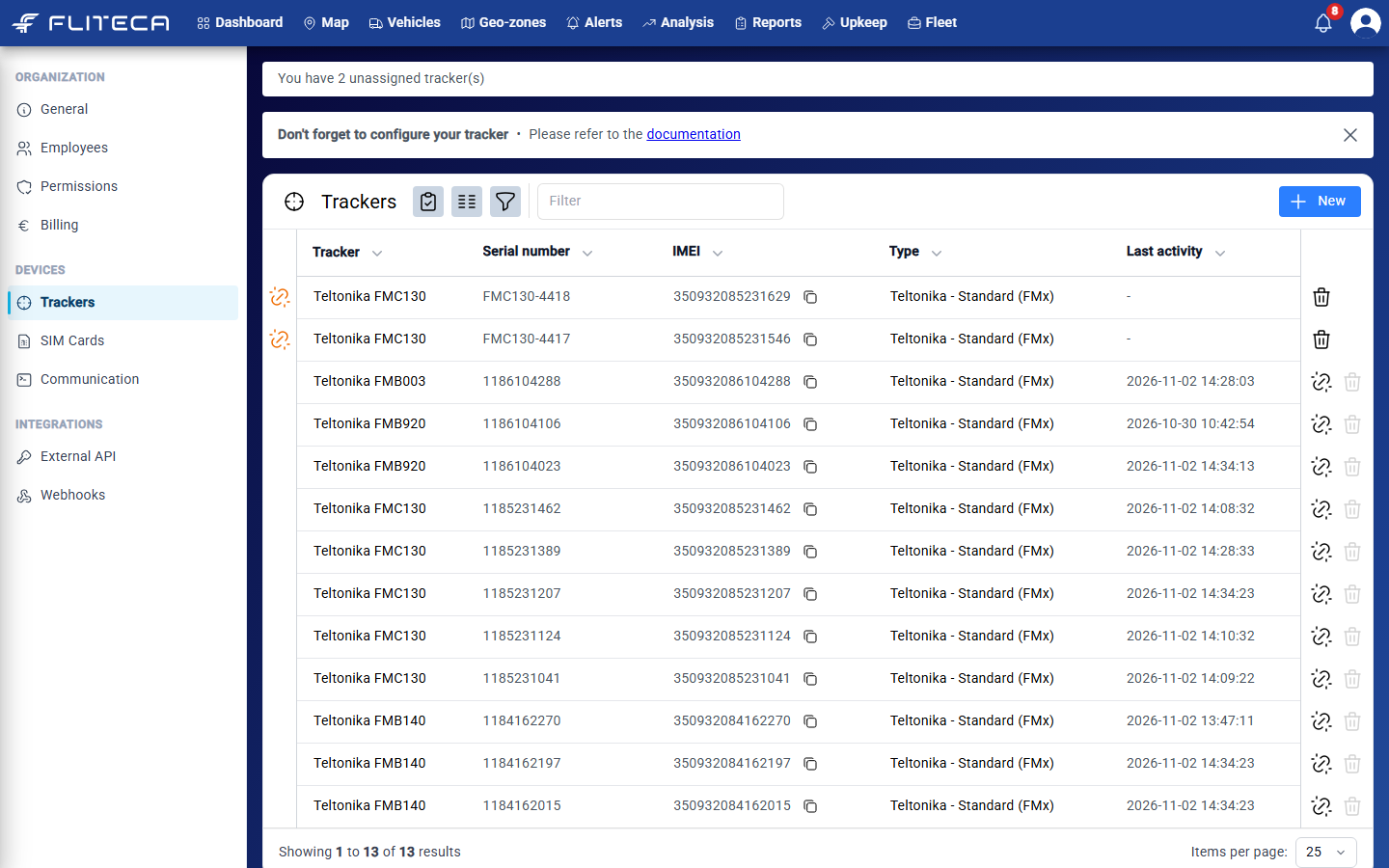
Click Fleet in the top menu and then Trackers.
Click New above the tracker list, then Bulk import.
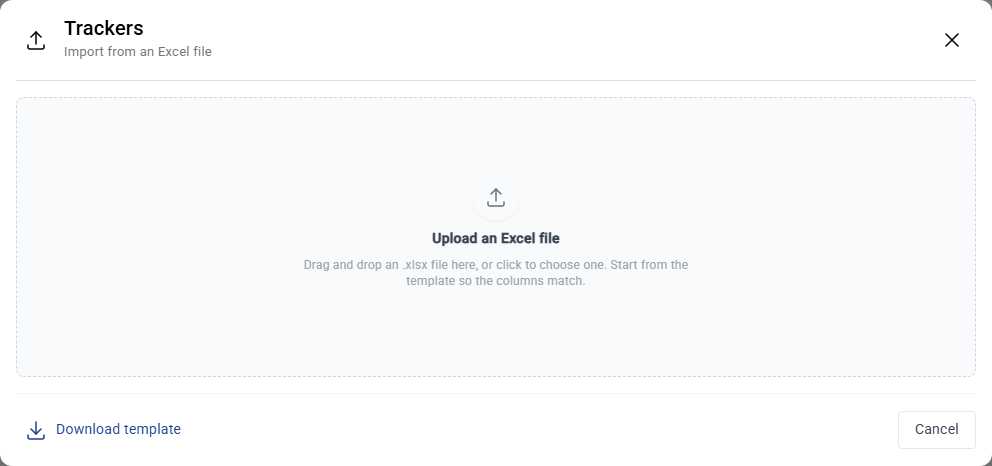
Click Download template. You get an Excel file with the right columns.
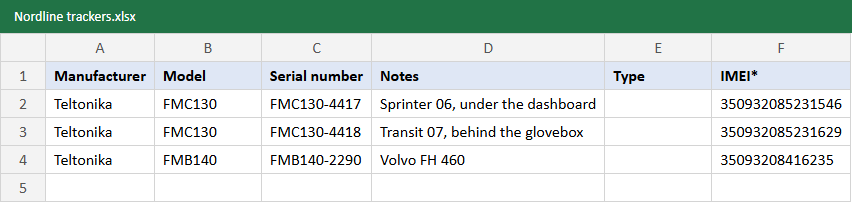
Open the file and fill in one tracker per row. Only IMEI is required, and it must have 15 digits. Write the Manufacturer and Model as they are on the label, for example “Teltonika” and “FMC130”. Fliteca then fills in the Type for you. Use Notes for where the tracker is installed.
Save the file. Drop it into the import window, or click the window to choose it.
Fliteca checks every row and shows a preview. Red rows have a problem. Point at the i to read what is wrong. In this example, the last IMEI has only 14 digits. Fix it in Excel and click Choose another file, or import the other rows now.
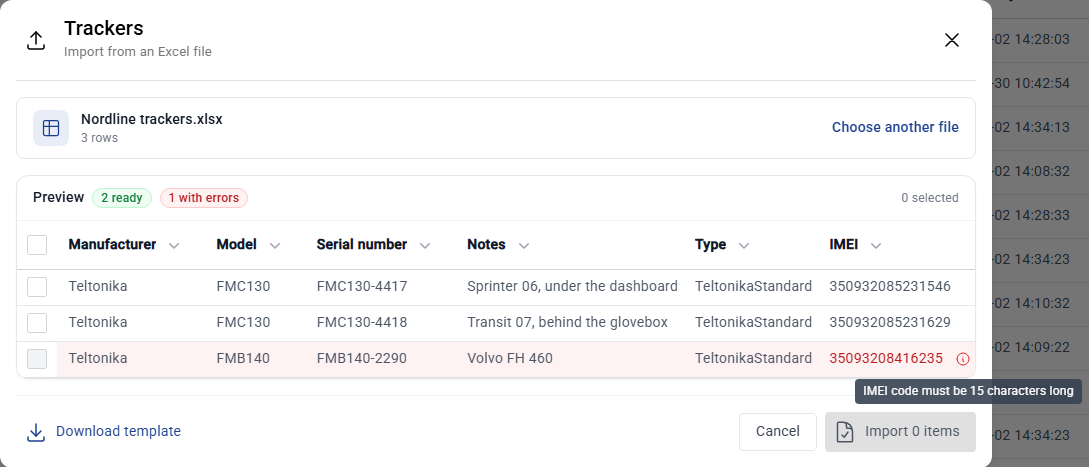
Tick the rows to import, or tick the box in the header to select all ready rows.
Click Import 2 items and then Yes.
The new trackers are at the top of the list. The orange icon on the left means that the tracker is not in a vehicle yet. Link each tracker to its vehicle on the vehicle’s page, or while you add the vehicle.